


.png)
.png)


Editing an existing page in HubSpot Content Hub is simple and works through the same drag-and-drop editor used when creating new pages. Once a page has been published, you can return to it anytime to update text, images, sections, or other content elements.
This makes it easy for marketing teams to keep website content updated without needing developer support.
Understanding how to edit pages in HubSpot Content Hub is important for maintaining accurate information and improving website performance over time.
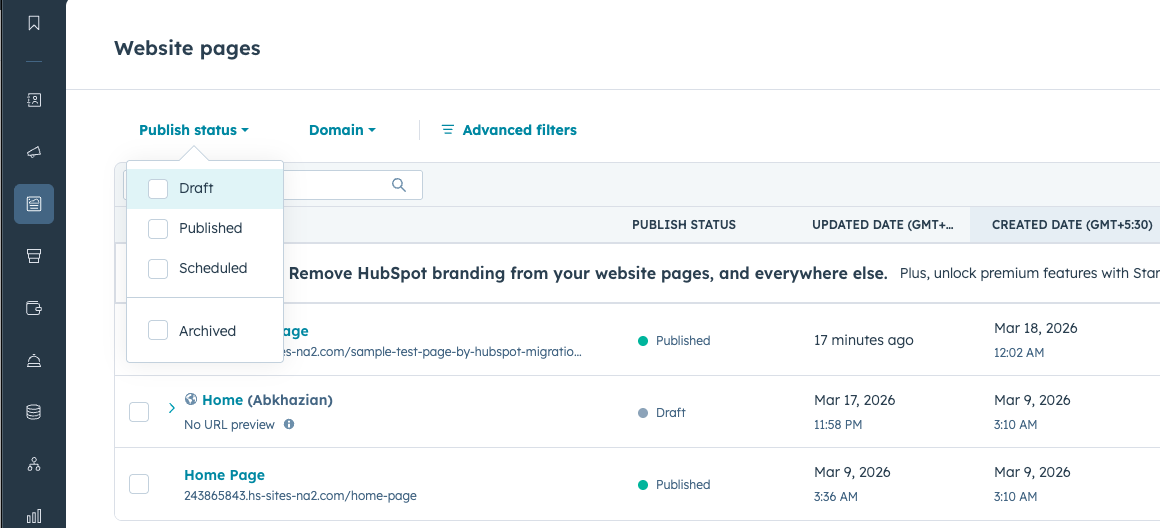
Step 1: Navigate to Website Pages
To begin editing a page, first open the Website Pages section in HubSpot.
You can access it by going to:
Content → Website Pages
This area displays a list of all the pages currently available on your website.
You can search, filter, or sort pages to find the one you want to edit.
Step 2: Open the Page Editor
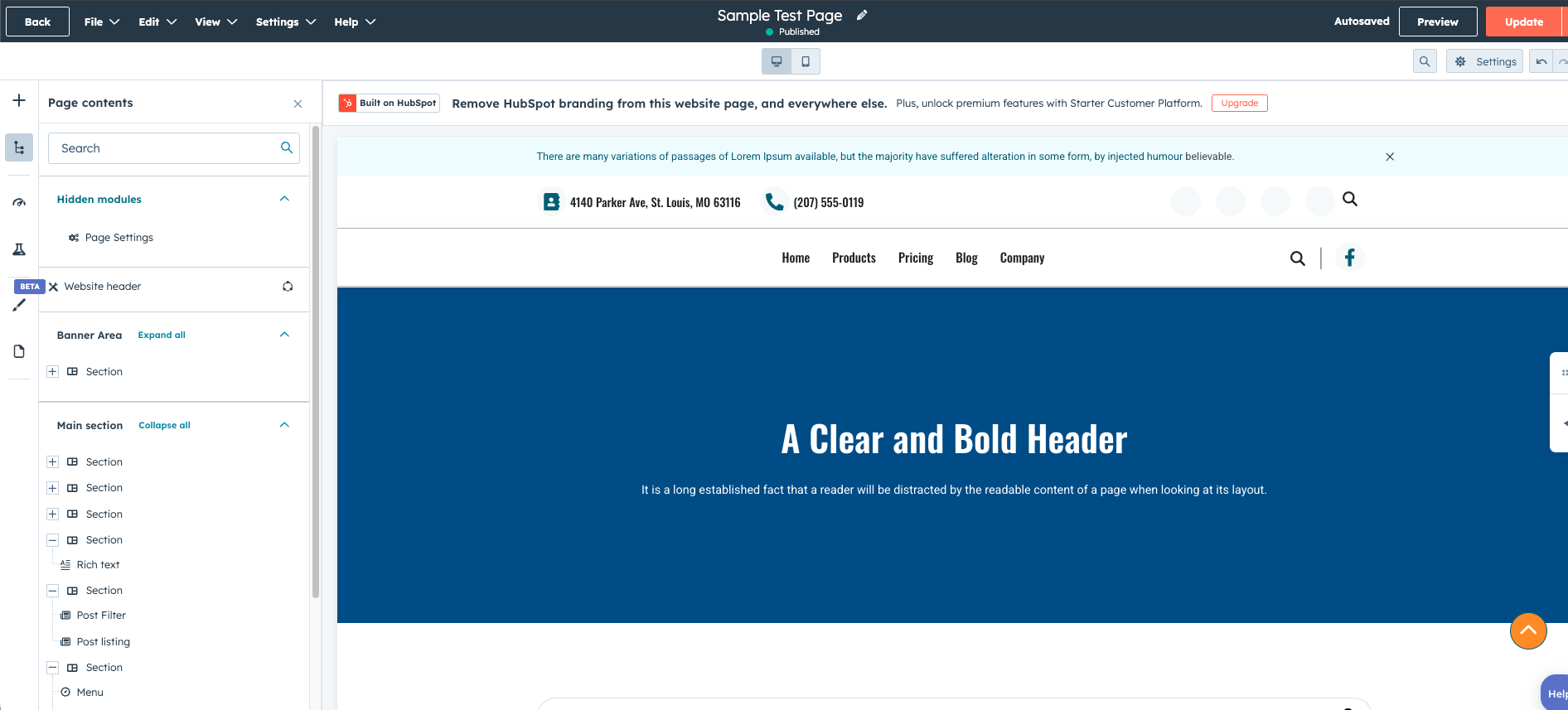
Once you find the page you want to edit, click on the page name.
HubSpot will open the page inside the HubSpot Content Hub drag-and-drop editor.
The editor shows the full page layout along with all sections and modules used on the page.
Step 3: Update Page Content
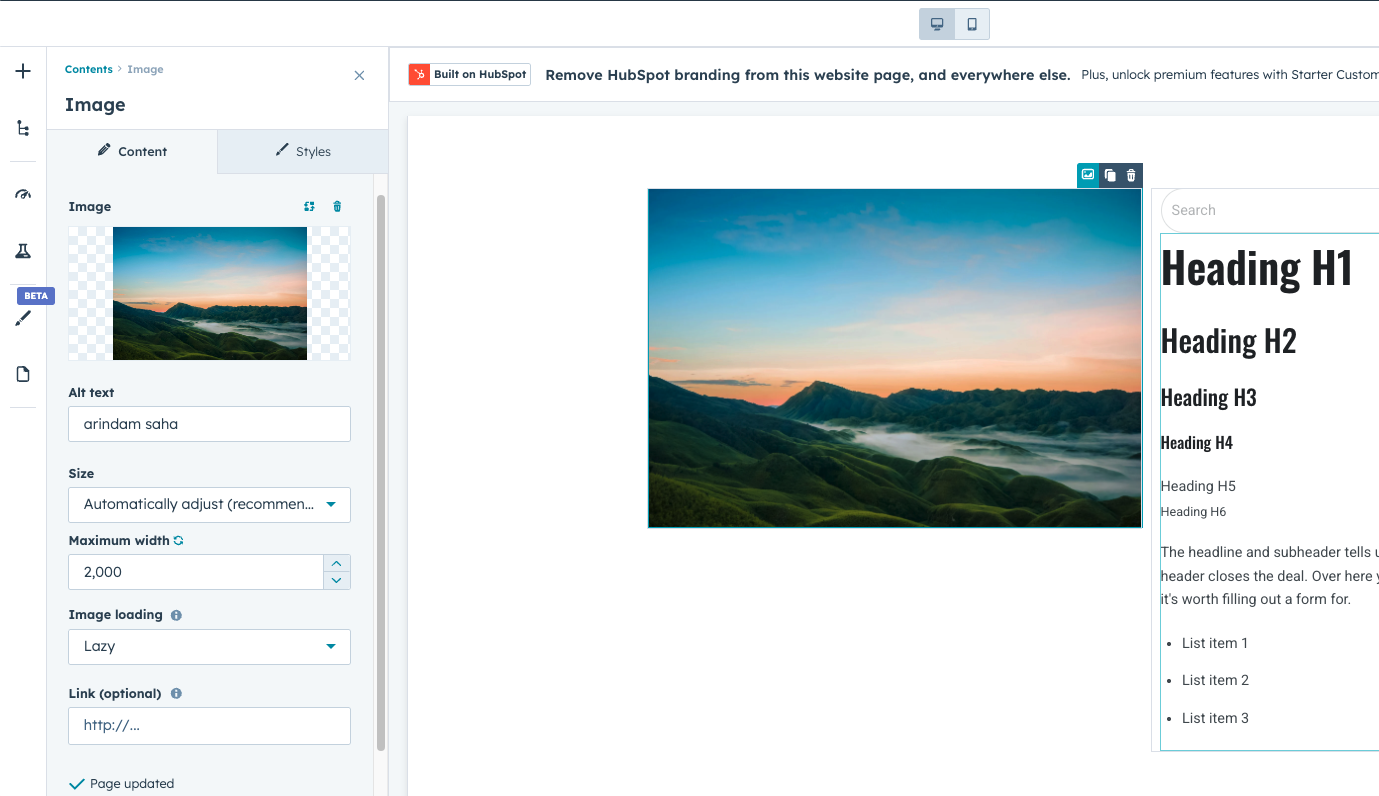
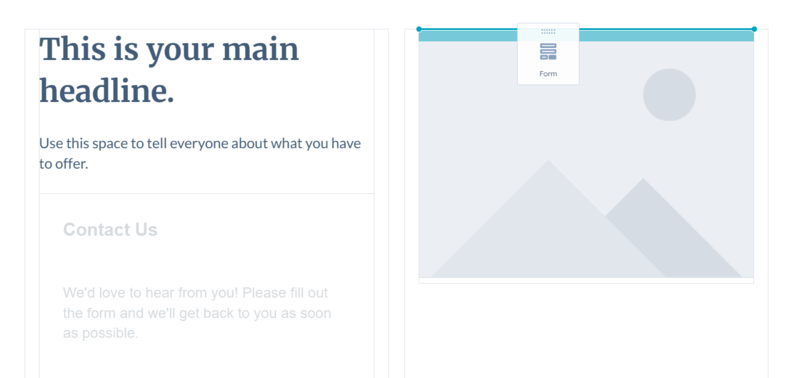
Inside the editor, you can modify the page content directly.
For example, you can update:
- Text inside content modules
- Images and graphics
- Buttons and links
- Forms or calls-to-action
- Video content
- Each module can be edited independently without affecting the rest of the page.
Step 4: Rearrange Page Sections
If the template allows it, you can also adjust the page layout.
Editors can:
- Move sections up or down
- Duplicate sections
- Delete unnecessary sections
- Add new modules to sections
This flexibility allows you to improve page structure as your content evolves.
Step 5: Update Page Settings
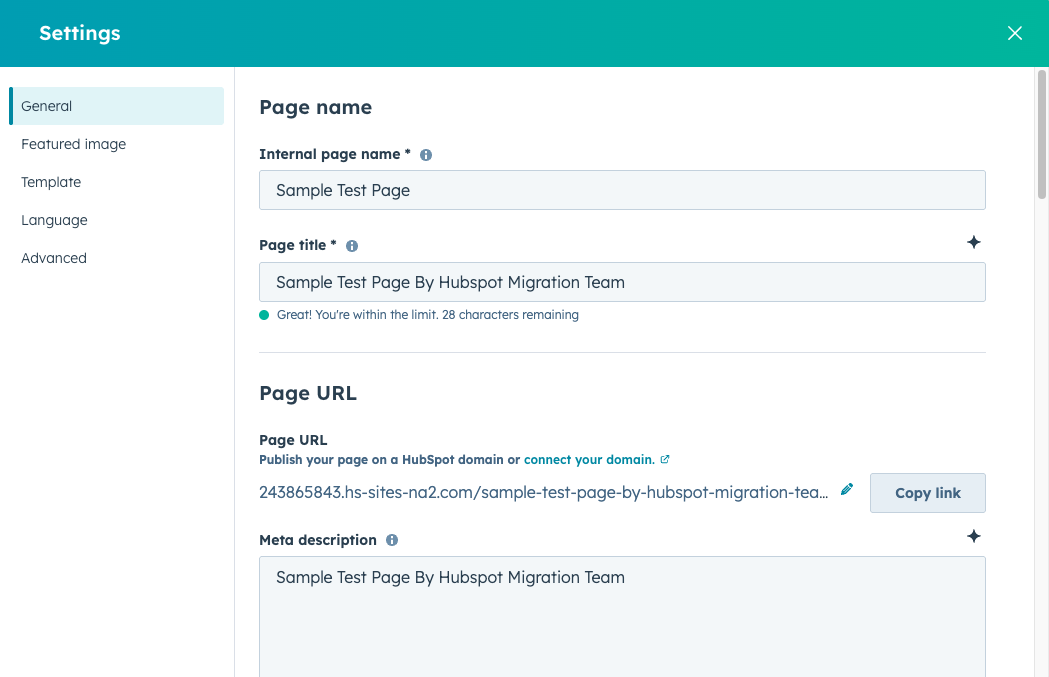
In addition to editing page content, you may want to update certain page settings.
These settings include:
- Page title
- Meta description
- URL slug
- Social sharing image
Updating these settings can improve your page’s SEO and how it appears when shared on social platforms.
Step 6: Preview the Changes
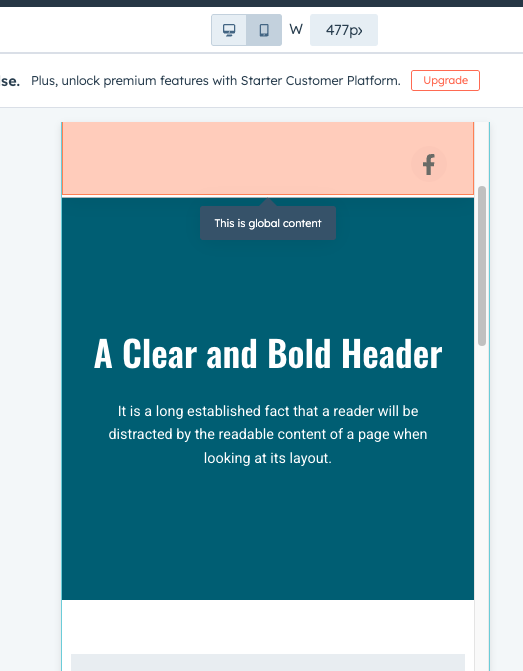
Before publishing updates, HubSpot allows you to preview the page.
You can preview the page in different views such as:
Desktop
Tablet
Mobile
This helps ensure the design looks correct across all devices.
Step 7: Publish the Updated Page
After making your changes, click Update or Publish to make the changes live.
HubSpot will immediately apply the updates to the live page.
If necessary, you can continue editing and republishing the page as many times as needed.
Final Thoughts
Editing pages in HubSpot Content Hub is designed to be easy and flexible. The drag-and-drop editor allows teams to update content quickly while maintaining the page structure defined by templates.
This workflow makes it possible for marketing teams to keep their websites fresh and accurate without needing technical expertise.
Related Post
How Do HubSpot Content Hub URL Redirects Work?
When websites evolve, page URLs sometimes change. This can happen when pages are renamed, moved to a new structure, or replaced with updated content. If visitors try to access the old URL, they may encounter a 404 page not found error.
How Does the HubSpot Content Hub Drag-and-Drop Editor Work?
The HubSpot Content Hub drag-and-drop editor is the main tool used to create and edit pages within HubSpot. It allows users to build website pages visually by arranging sections, modules, and content elements without writing code.
What Is a HubSpot Portal?
A HubSpot portal is the main environment where all your HubSpot tools and data are stored. It works as your company’s HubSpot account workspace.
Have a Project in Mind?
Let’s talk about what you need and how we can make it happen.

Leave a reply