


.png)
.png)



The HubSpot Content Hub File Manager is the place where all files used across your website and content are stored and managed.
This includes images, documents, videos, PDFs, and other media that appear on your pages, blog posts, emails, and landing pages built inside HubSpot Content Hub.
Understanding how the File Manager works helps you keep your website organized and ensures that your assets are easy to manage as your site grows.
What Is the HubSpot Content Hub File Manager?
The HubSpot Content Hub File Manager is a built-in storage system that allows you to upload, organize, and manage files used across your HubSpot website and marketing assets.
Instead of uploading images or files separately for every page, the File Manager acts as a central library for all media assets.
For example, if you upload a logo or product image once, you can reuse it across multiple pages.
Where to Find the File Manager in HubSpot Content Hub
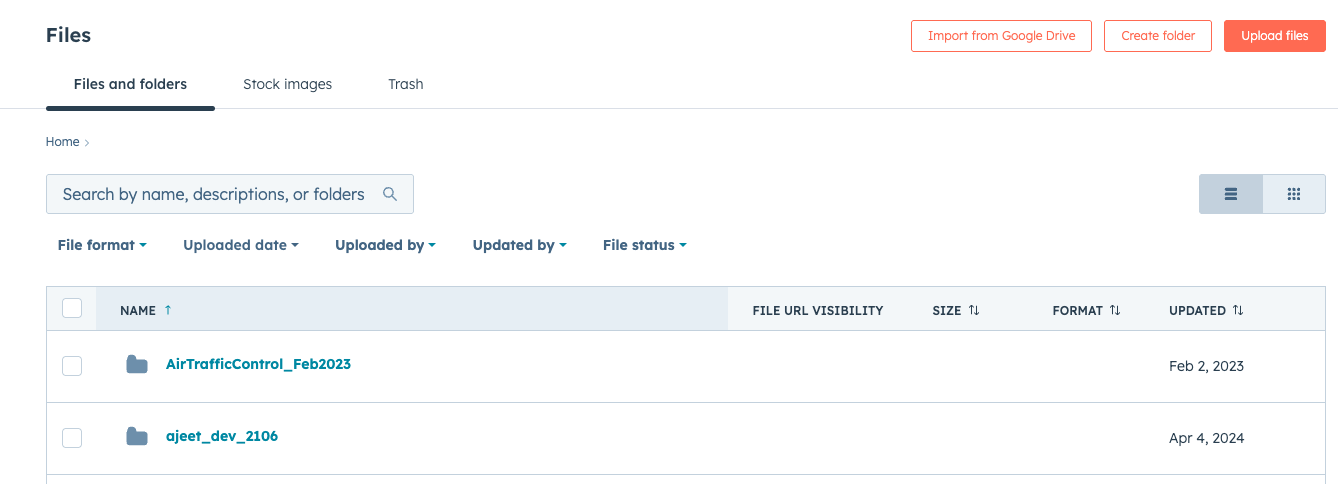
You can access the File Manager directly inside HubSpot.
Typically, it is located under:
Content → Files
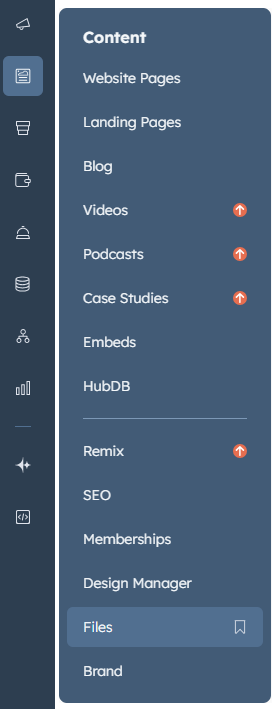
Once inside, you will see a dashboard where you can:
- Upload new files
- Browse existing assets
- Organize files into folders
- Search for specific files
Uploading Files in HubSpot Content Hub
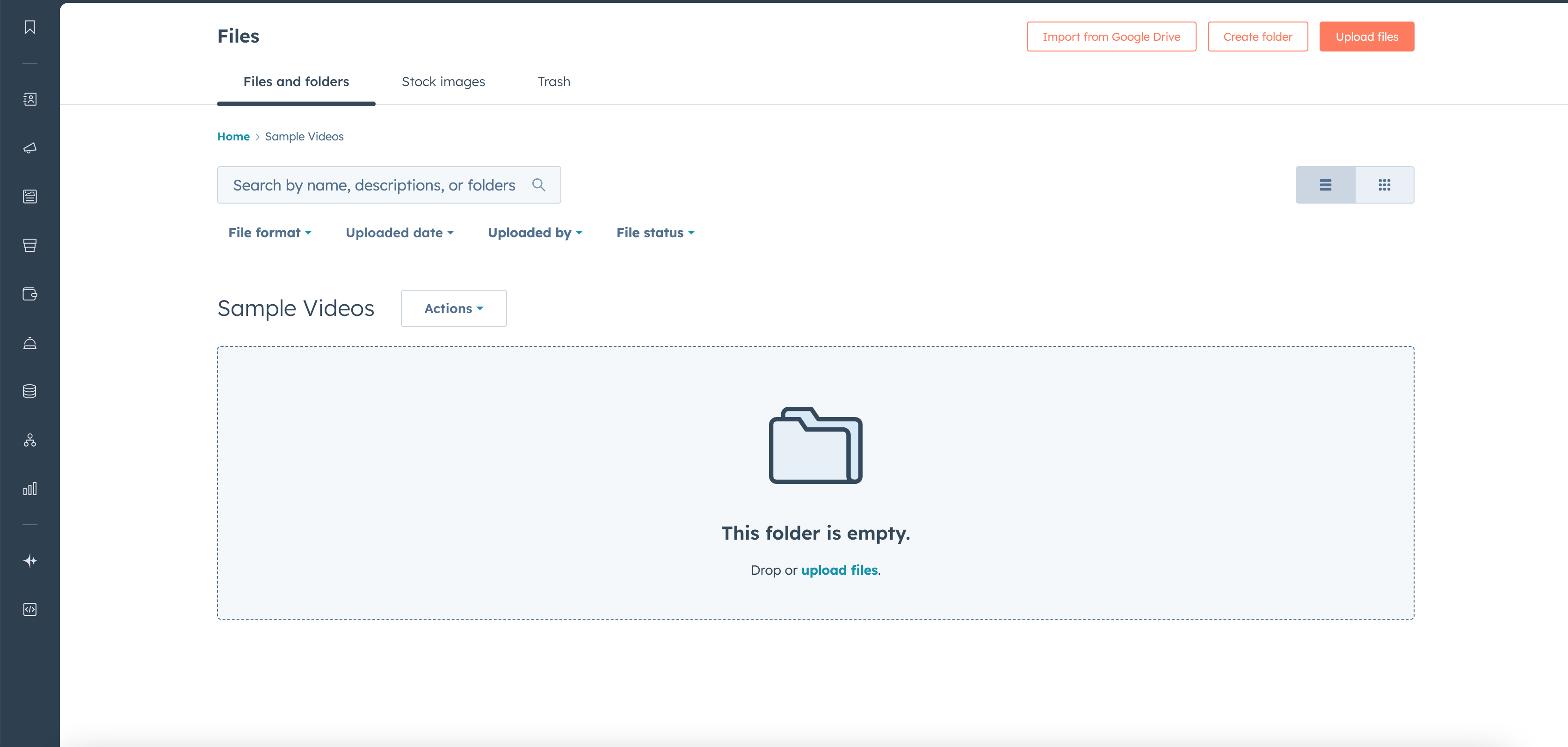
Uploading files into the HubSpot Content Hub File Manager is simple.
You can upload files by:
- Dragging and dropping them into the File Manager
- Using the upload button
- Importing files from external URLs
Once uploaded, these files become available across your HubSpot Content Hub pages and modules.
Organizing Files with Folders
As your website grows, you may end up with hundreds of images and files.
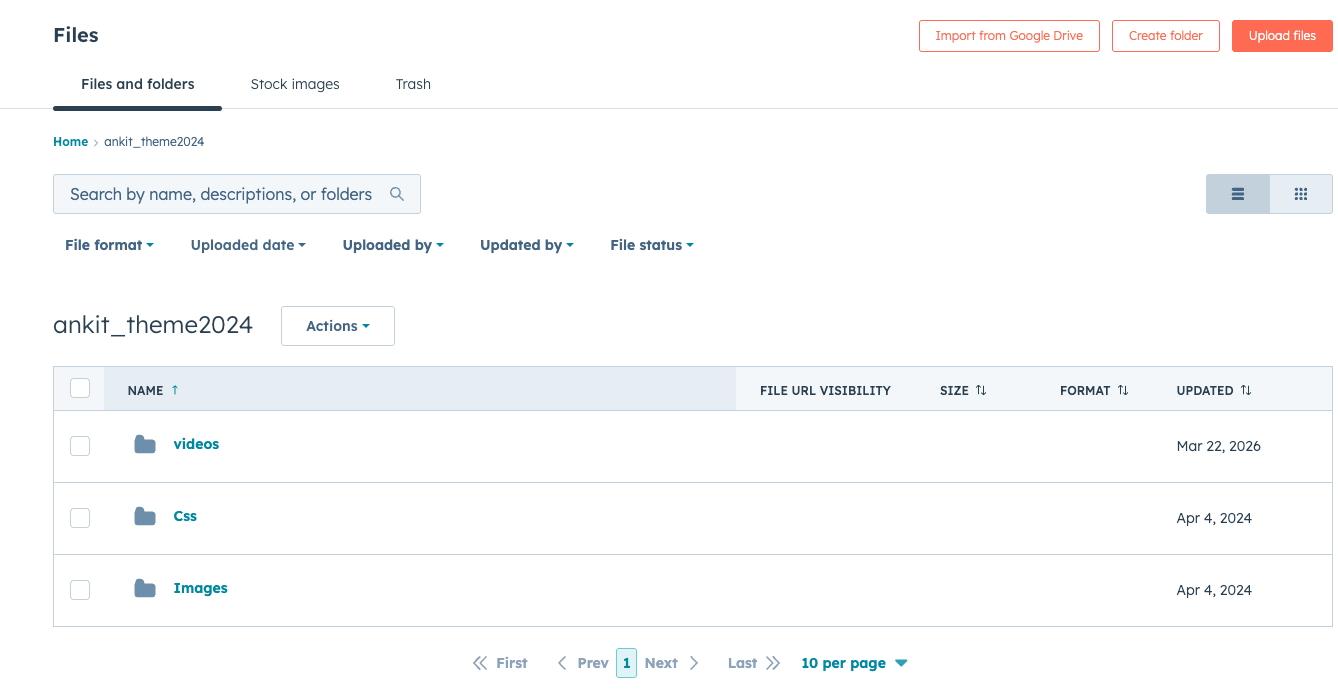
The HubSpot Content Hub File Manager allows you to create folders so assets stay organized.
Common folder structures include:
- Website images
- Blog images
- Documents and PDFs
- Marketing assets
- Brand logos
Keeping files organized makes it easier for teams to find assets quickly.
Using Files on Pages
Once files are uploaded to the File Manager, they can be used anywhere in HubSpot Content Hub.
For example, you can insert files into:
- Website pages
- Landing pages
- Blog posts
- Email campaigns
- Custom modules
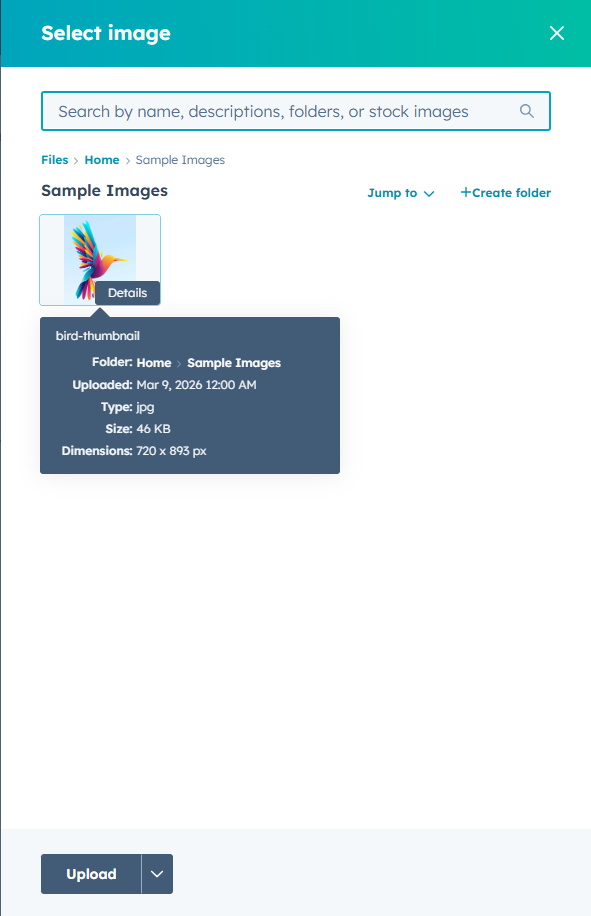
When adding an image or document to a page, HubSpot allows you to choose files directly from the File Manager.
File Optimization and Settings
The HubSpot Content Hub File Manager also includes settings that help optimize your website.
For example, you can:
- Add alt text for images
- Control file visibility
- Manage file URLs
- Replace files without changing links
These options help improve both SEO and content management.
Final Thoughts
The HubSpot Content Hub File Manager acts as a central media library for your website and marketing assets.
By keeping all files organized in one place, it becomes easier to manage images, documents, and other resources used across your HubSpot Content Hub website.
Related Post

Pages, Templates, and Modules in HubSpot Content Hub Explained
When working with HubSpot Content Hub, three concepts appear again and again: pages, templates, and modules. Understanding how these pieces work together is essential for building and managing websites on the platform.

How Do HubSpot Content Hub Templates Work?
Templates are one of the core building blocks of websites created in HubSpot Content Hub. A template defines the layout and structure of a page, ensuring that pages follow a consistent design while still allowing editors to update content easily.

How Does HubSpot Content Hub Blog Management Work?
Blogging is an important part of many content marketing strategies. HubSpot Content Hub includes a built-in blogging system that allows businesses to create, publish, and manage blog content directly within the platform.
Have a Project in Mind?
Let’s talk about what you need and how we can make it happen.

Leave a reply