


.png)
.png)



At times, you may need to remove pages from your website. This can happen when content becomes outdated, a campaign ends, or the website structure is being reorganized.HubSpot Content Hub provides a simple way to delete pages directly from the page management dashboard.
However, before deleting a page, it is important to consider its impact on search engines and website visitors. Removing a page without proper planning may lead to broken links or lost search traffic.
Understanding how to delete pages in HubSpot Content Hub helps ensure your website remains organized and optimized.
When Should You Delete a Page?
Deleting a page is typically done when the page is no longer needed.
Common situations include:
- Expired landing pages from past campaigns
- Duplicate pages that are no longer required
- Outdated content that will not be updated
- Pages created during testing or development
Before deleting a page, it is often a good idea to check whether the page still receives traffic or has links pointing to it.
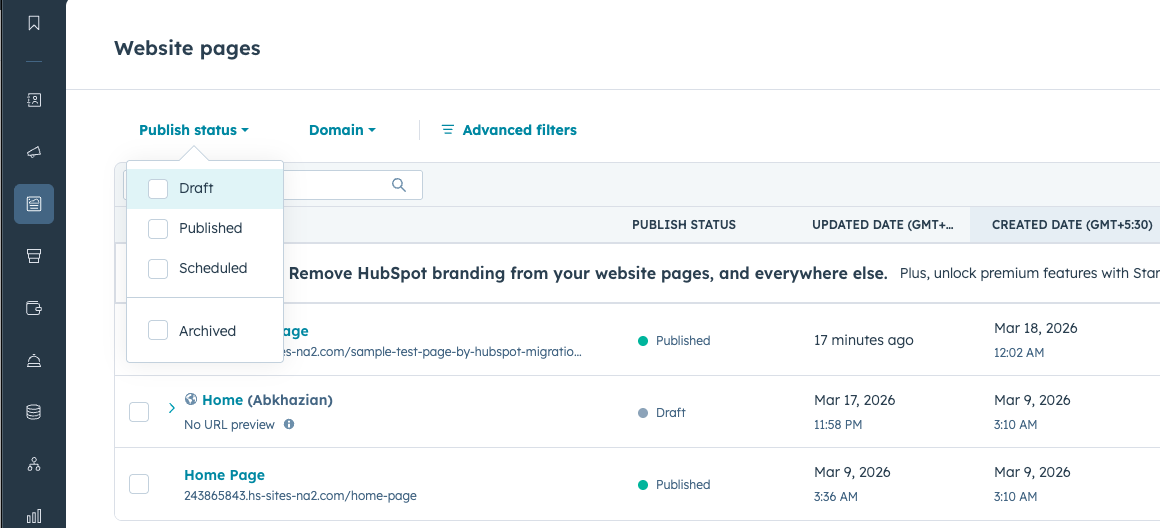
Step 1: Go to Website Pages
To delete a page in HubSpot Content Hub, first navigate to the page management area.
Go to:
Content → Website Pages
This section displays all the pages currently available on your website.
Step 2: Find the Page You Want to Delete
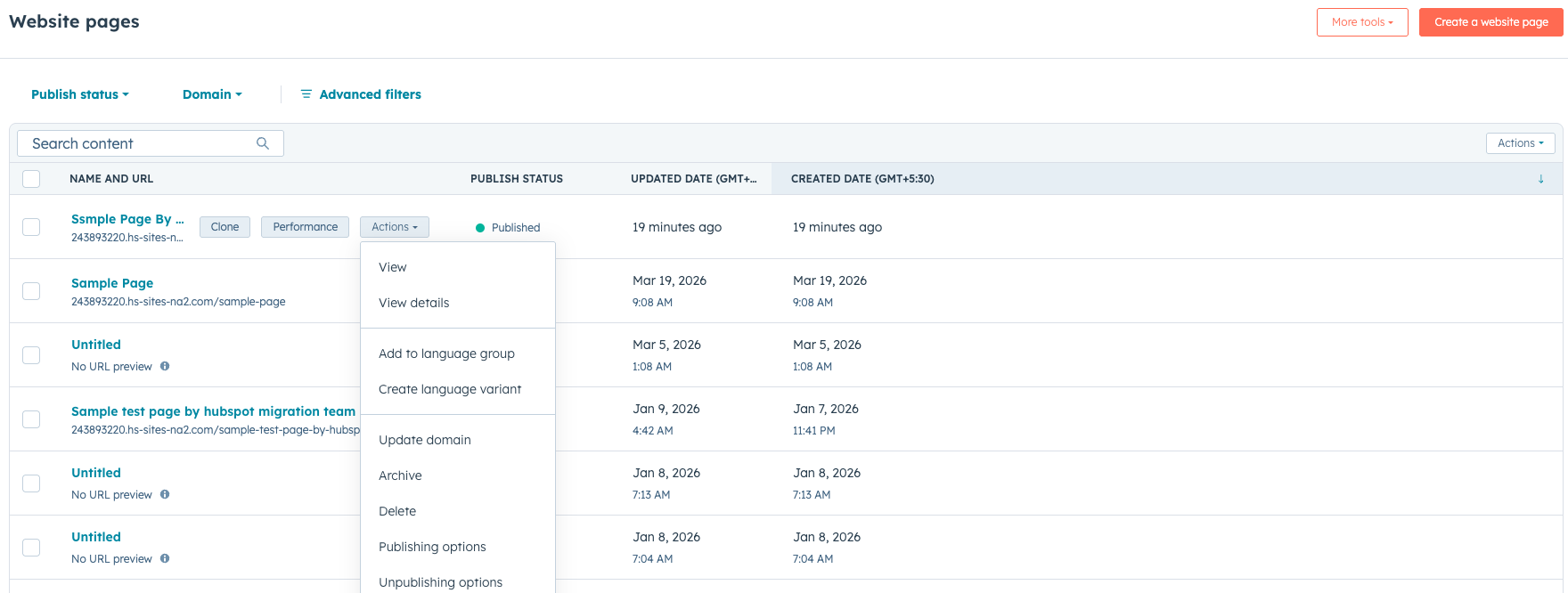
Use the search bar or page list to locate the page you want to remove.
Hover over the page name to reveal the available actions.
HubSpot provides several page management options, including editing, cloning, and deleting.
Step 3: Select the Delete Option
Click the More menu next to the page.
From the dropdown menu, select Delete.
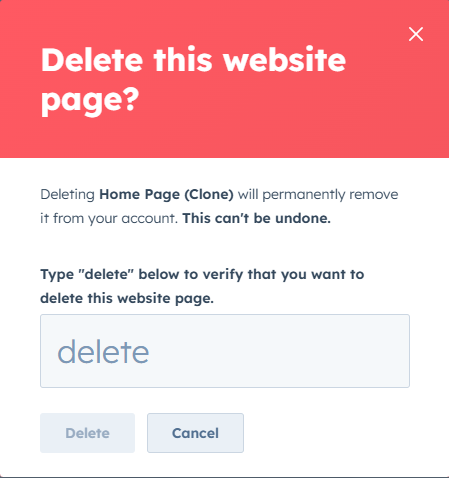
HubSpot will show a confirmation prompt to ensure you really want to remove the page.
Step 4: Confirm Page Deletion
After confirming the deletion, the page will be removed from your list of website pages.
If the page was previously published, it will also be removed from the live website.
Visitors trying to access the page URL may receive a 404 page not found error unless a redirect is created.
Consider Setting Up a Redirect
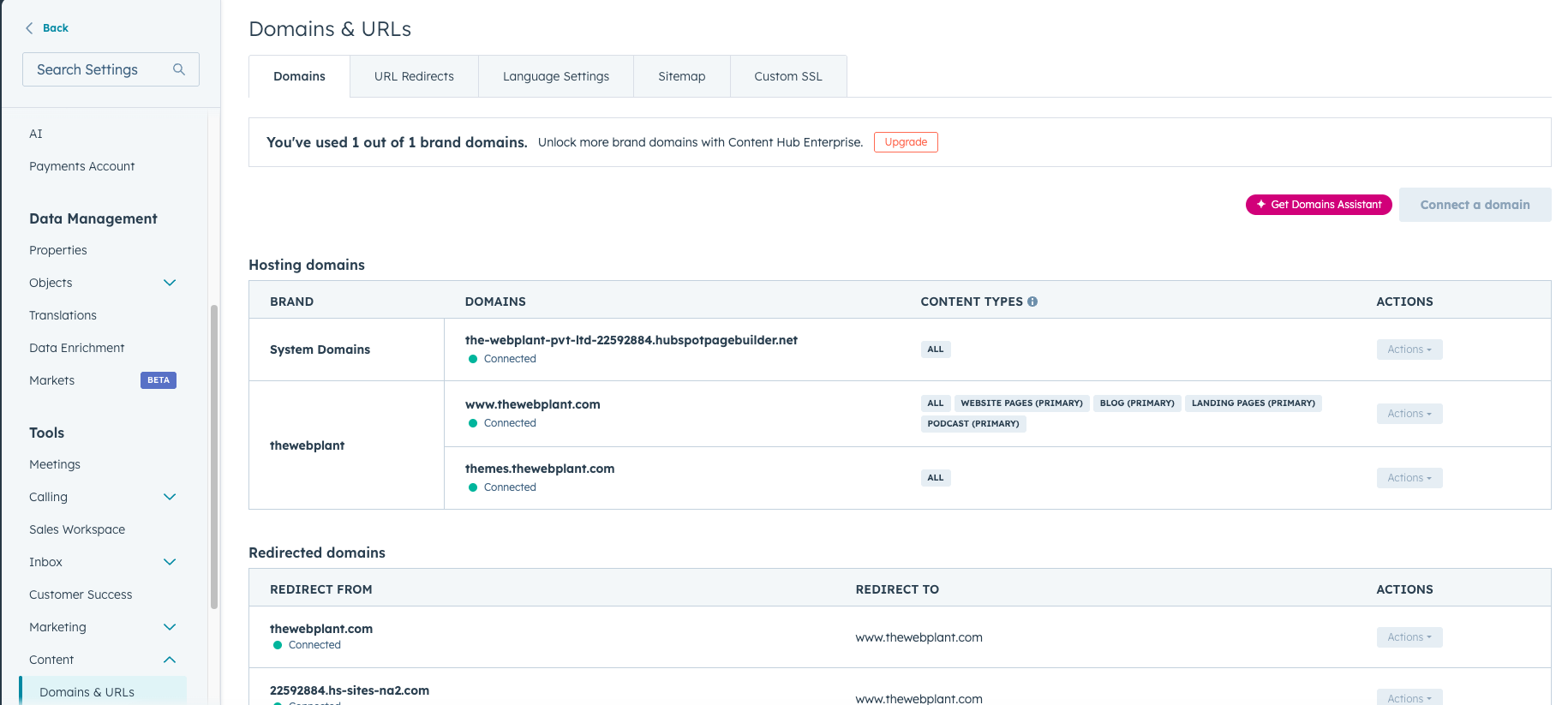
Before deleting a page in HubSpot Content Hub, it is often recommended to create a redirect.
Redirects help guide visitors from the old page URL to another relevant page.
For example, you might redirect:
- An old campaign page to a newer campaign page
- An outdated service page to an updated service page
- A removed blog post to a related article
HubSpot includes a built-in redirect tool that makes this process simple.
Check Internal Links Before Deleting
Another good practice is checking whether other pages link to the page you are deleting.
If internal links still point to the deleted page, visitors may encounter broken links.
Updating these links helps maintain a smooth browsing experience.
Final Thoughts
Deleting pages in HubSpot Content Hub is a quick process, but it should be done carefully. Before removing a page, it’s important to check traffic, update links, and create redirects when necessary.
Proper page management ensures your website remains organized and continues to perform well in search engines.
Related Post

How Do HubSpot Content Hub Page Templates and Layout Sections Work?
When building pages in HubSpot Content Hub, the structure of a page is usually defined by a template. Within that template, the page is divided into layout sections that organize how content appears on the page.
How Do HubSpot Content Hub Staging and Testing Environments Work?
When making major changes to a website, it is often risky to test those changes directly on the live site. To help avoid this problem, HubSpot Content Hub provides a staging environment where developers and teams can test updates before publishing...

Can HubSpot Content Hub Handle Large Websites?
Yes, HubSpot Content Hub can handle large websites, including sites with hundreds or even thousands of pages. The platform is designed to support businesses that rely heavily on their website for marketing, content publishing, and lead generation.
Have a Project in Mind?
Let’s talk about what you need and how we can make it happen.

Leave a reply