


.png)
.png)


Creating a page in HubSpot Content Hub is a straightforward process. The platform provides a visual page editor that allows marketers and content teams to build pages without writing code.
Pages in HubSpot Content Hub are typically built using templates, sections, and modules, which together form the structure and content of the page.
Once a template is selected, editors can easily add text, images, videos, and other elements to create the final page.
Step 1: Navigate to Website Pages
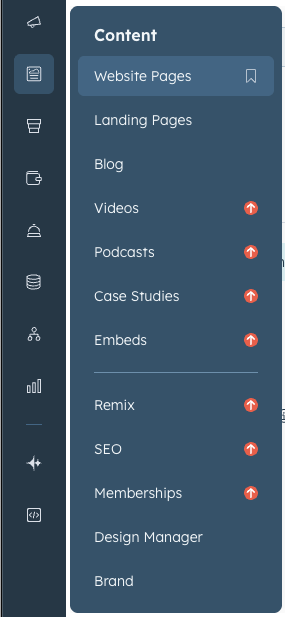
To create a page in HubSpot Content Hub, first navigate to the website pages section inside your HubSpot portal.
You can find it by going to:
Content → Website Pages
This area lists all the pages currently available on your website and allows you to create new ones.
Step 2: Click “Create Page”
Once you are inside the Website Pages section, click the Create Page button.
HubSpot will then ask you to select the type of page you want to create. Common options include:
- Website page
- Landing page
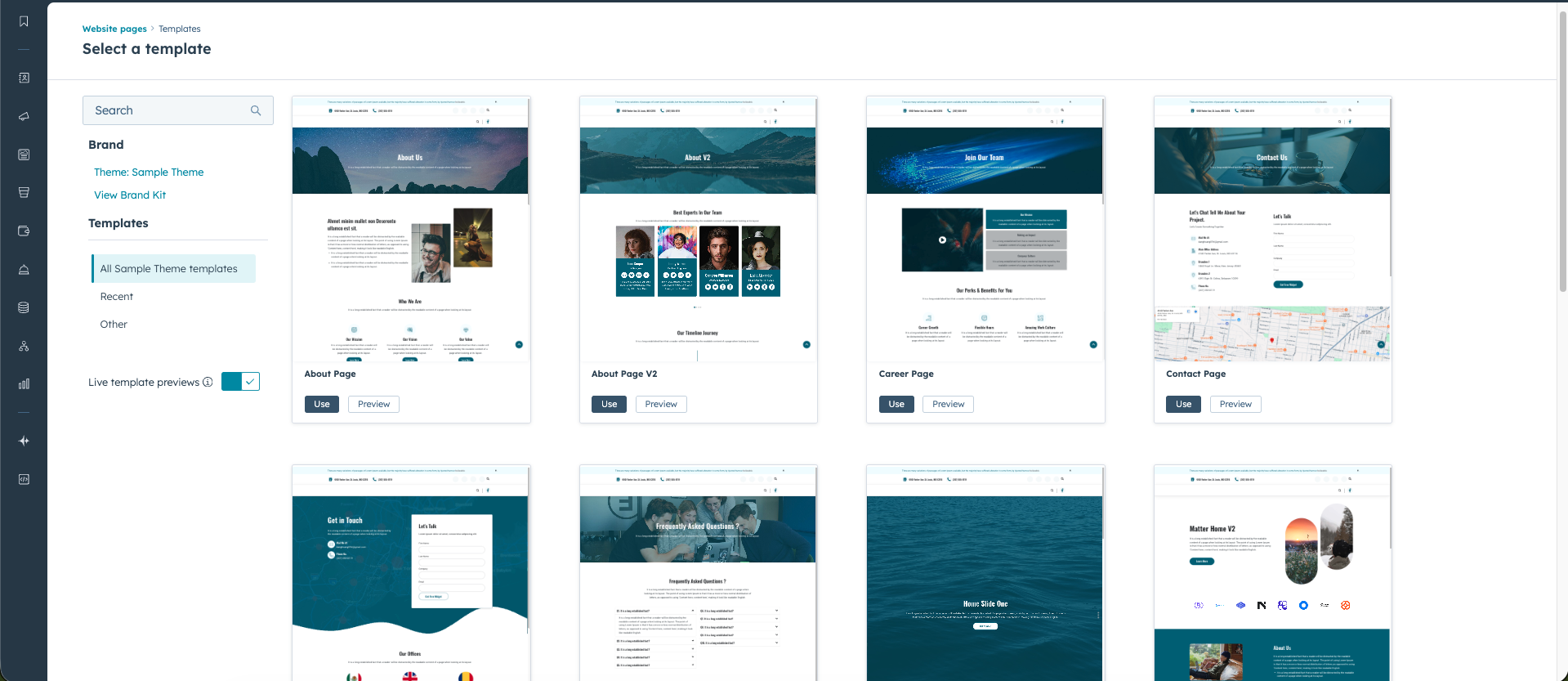
After choosing the page type, HubSpot will prompt you to select a template.
Templates define the structure of the page.
Step 3: Choose a Template
Templates determine how your page layout is structured.
A template may include elements such as:
- Header navigation
- Hero section
- Content sections
- Footer
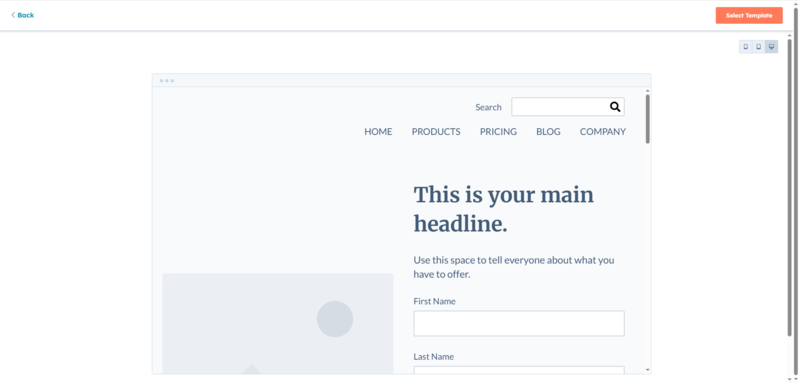
Once the template is selected, the page will open inside the HubSpot Content Hub drag-and-drop editor.
Step 4: Add and Edit Page Content
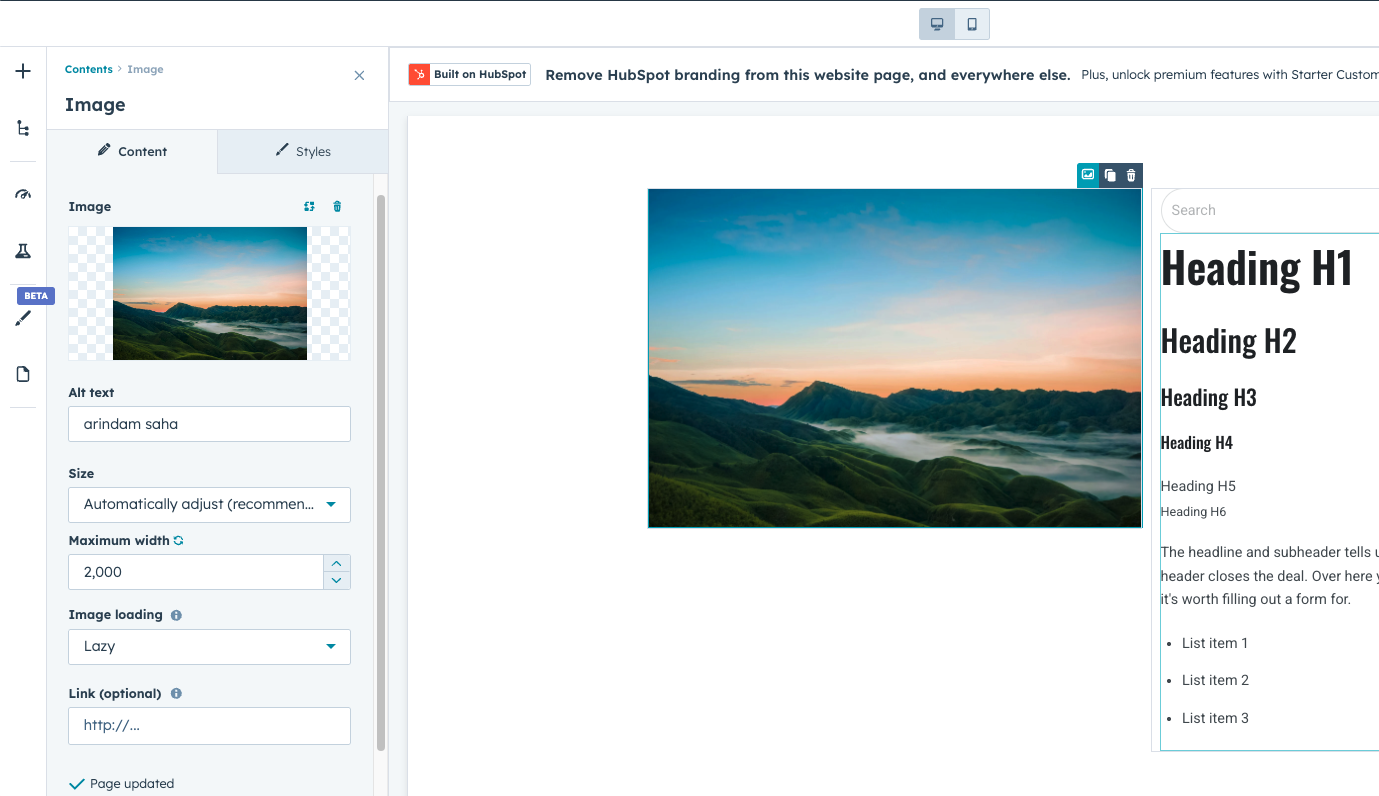
Inside the editor, you can start adding content to your page.
HubSpot allows you to insert modules such as:
- Text blocks
- Images
- Buttons
- Forms
- Videos
- Calls-to-action
Modules can be dragged into the page layout and edited individually.
This allows editors to customize content while keeping the page design consistent.
Step 5: Configure Page Settings
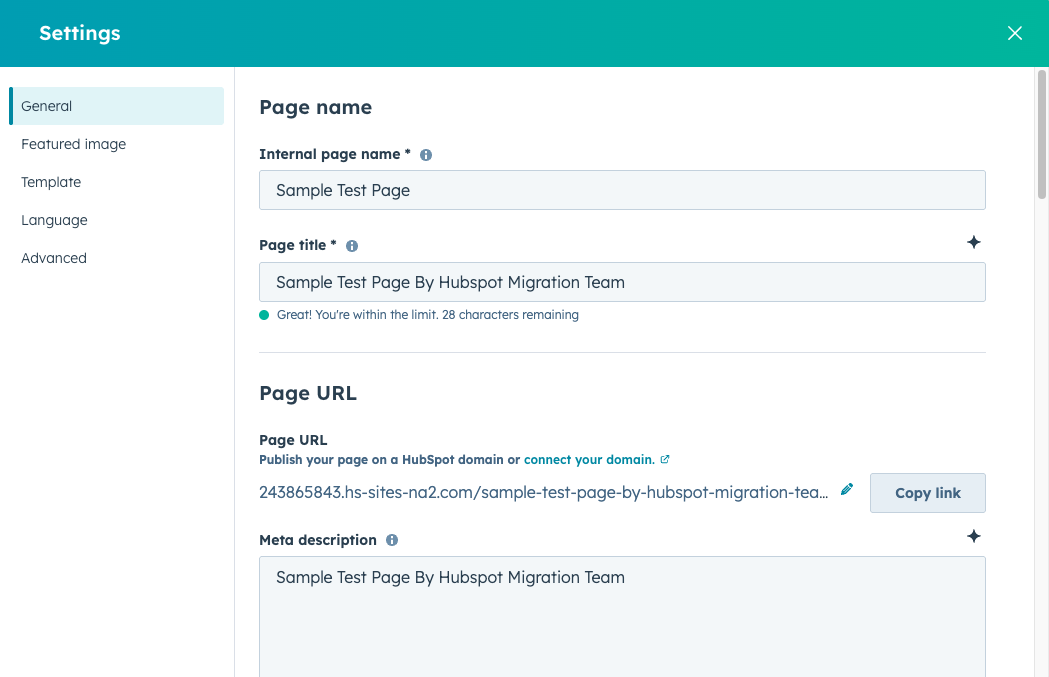
Before publishing, it is important to configure your page settings.
These settings include:
- Page title
- URL slug
- Meta description
- Featured image for social sharing
These fields help search engines understand your page and are important for SEO.
Step 6: Preview the Page
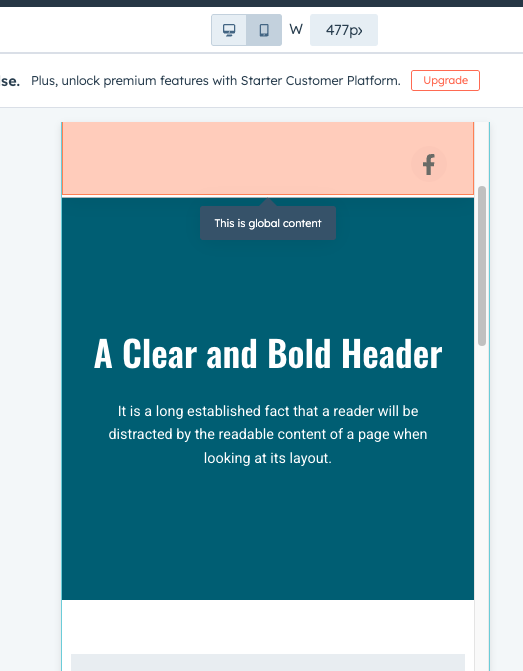
HubSpot allows you to preview your page before publishing.
You can preview the page in different device views, including:
- Desktop
- Tablet
- Mobile
This helps ensure the layout and design look correct across devices.
Step 7: Publish the Page
Once everything looks correct, you can click Publish to make the page live.
HubSpot automatically handles hosting and delivery, so the page becomes available on your website immediately after publishing.
If needed, you can return later to update the content and republish the page.
Final Thoughts
Creating pages in HubSpot Content Hub is designed to be simple and efficient. By combining templates, modules, and the drag-and-drop editor, teams can build professional pages quickly without needing advanced technical knowledge.
This approach makes HubSpot Content Hub a powerful platform for marketing teams that need to launch and update pages frequently.
Related Post
What Comes Included with HubSpot Content Hub?
HubSpot Content Hub is more than just a tool for building web pages. It is part of the larger HubSpot platform, which means many important website features are already built into the system.
How Do HubSpot Content Hub Themes Work?
Themes are one of the most important parts of building websites in HubSpot Content Hub. A theme controls the overall design system of your website, including layouts, colors, fonts, and reusable page structures.
How Do HubSpot Content Hub System Pages Work?
Every website needs certain system pages that handle situations such as errors, login access, or confirmation messages. HubSpot Content Hub provides system pages that control how these scenarios appear to visitors.
Have a Project in Mind?
Let’s talk about what you need and how we can make it happen.

Leave a reply