


.png)
.png)


As websites grow and publish more content, it becomes important for visitors to quickly find the information they are looking for. HubSpot Content Hub includes built-in search functionality that allows users to search across website pages, blog posts, and other published content.
Website search helps improve user experience by allowing visitors to navigate large content libraries without manually browsing multiple pages.
Understanding how HubSpot Content Hub search features work helps teams build websites that are easier for visitors to explore.
What Is Website Search in HubSpot Content Hub?
Website search allows visitors to enter keywords and find relevant content on your website.
For example, a visitor might search for:
- “HubSpot templates”
- “HubSpot Content Hub modules”
- “Marketing automation guides”
The search feature scans indexed website content and returns pages that match the search terms.


Where Search Is Used on a Website
Many websites include search functionality in areas such as:
- The main website header
- A help center or knowledge base
- Resource libraries
- Blog pages
Search is especially helpful for websites with a large number of pages or articles.
How HubSpot Indexes Content
For search to work properly, HubSpot Content Hub indexes website pages and blog posts,
Indexing means HubSpot scans the content and stores searchable information about each page.
The search system can typically index:
- Website pages
- Blog posts
- Knowledge base articles
- Resource library pages
When a visitor performs a search, HubSpot matches the search query with indexed content.
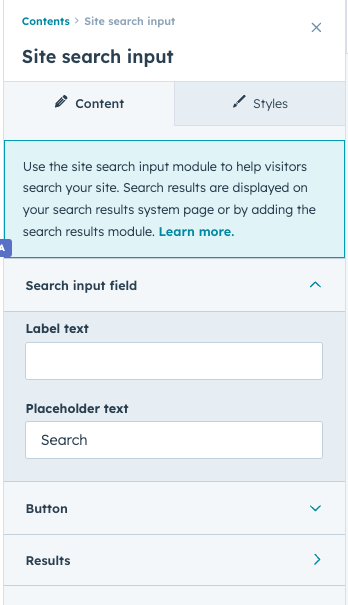
Adding a Search Bar to Your Website
Search bars are usually added to websites through header modules or navigation templates.
Developers often include a search module within the header so visitors can access search from any page.
Editors can then configure how search results are displayed.
Custom Search Results Pages
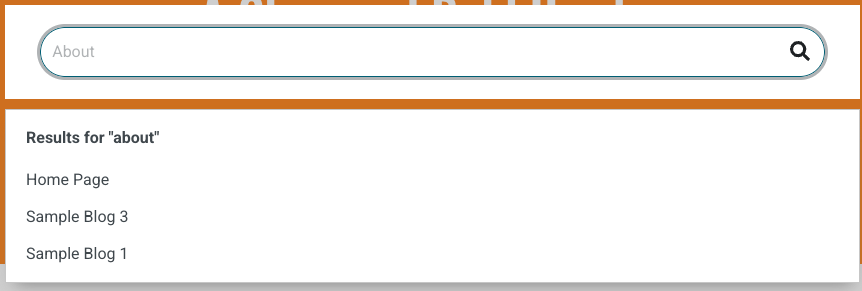
When a visitor performs a search, HubSpot displays results on a search results page.
This page typically includes:
- List of matching pages
- Blog articles related to the search query
- Snippets showing part of the content
Developers can customize the layout of search results pages to match the website’s design.
Key Takeaway
HubSpot Content Hub search features allow visitors to quickly find relevant content across your website. By indexing pages and displaying search results, HubSpot helps improve navigation and user experience, especially for websites with large content libraries.
Related Post

How Do HubSpot Content Hub Header and Footer Management Work?
The header and footer are two of the most important sections of any website. The header typically contains the navigation menu, logo, and key links, while the footer usually includes contact information, secondary navigation, and legal links.
How Do HubSpot Content Hub Backups and Version History Work?
When editing website pages or content, mistakes can sometimes happen. A section might be deleted accidentally, or changes may not produce the expected result. HubSpot Content Hub includes version history and recovery tools that allow users to review...
How Do HubSpot Content Hub Analytics Dashboards and Reporting Work?
Understanding how visitors interact with your website is essential for improving marketing performance. HubSpot Content Hub includes built-in analytics dashboards and reporting tools that allow teams to monitor traffic, engagement, and conversions...
Have a Project in Mind?
Let’s talk about what you need and how we can make it happen.

Leave a reply