


.png)
.png)



When building a website, teams often upload images, videos, documents, and other media assets. HubSpot Content Hub includes a File Manager that allows users to upload and organize media files used across the website.
Understanding file upload limits and media management features helps teams maintain an organized and efficient media library.
Understanding how HubSpot Content Hub file upload limits and media management work helps teams manage website assets without running into storage or performance issues.
What Is the HubSpot File Manager?
The HubSpot File Manager is the central location where all uploaded files are stored.
This includes assets such as:
- Images
- PDFs and documents
- Videos
- CSS and JavaScript files
- Downloadable resources
Once uploaded, these files can be used across pages, blog posts, and modules.
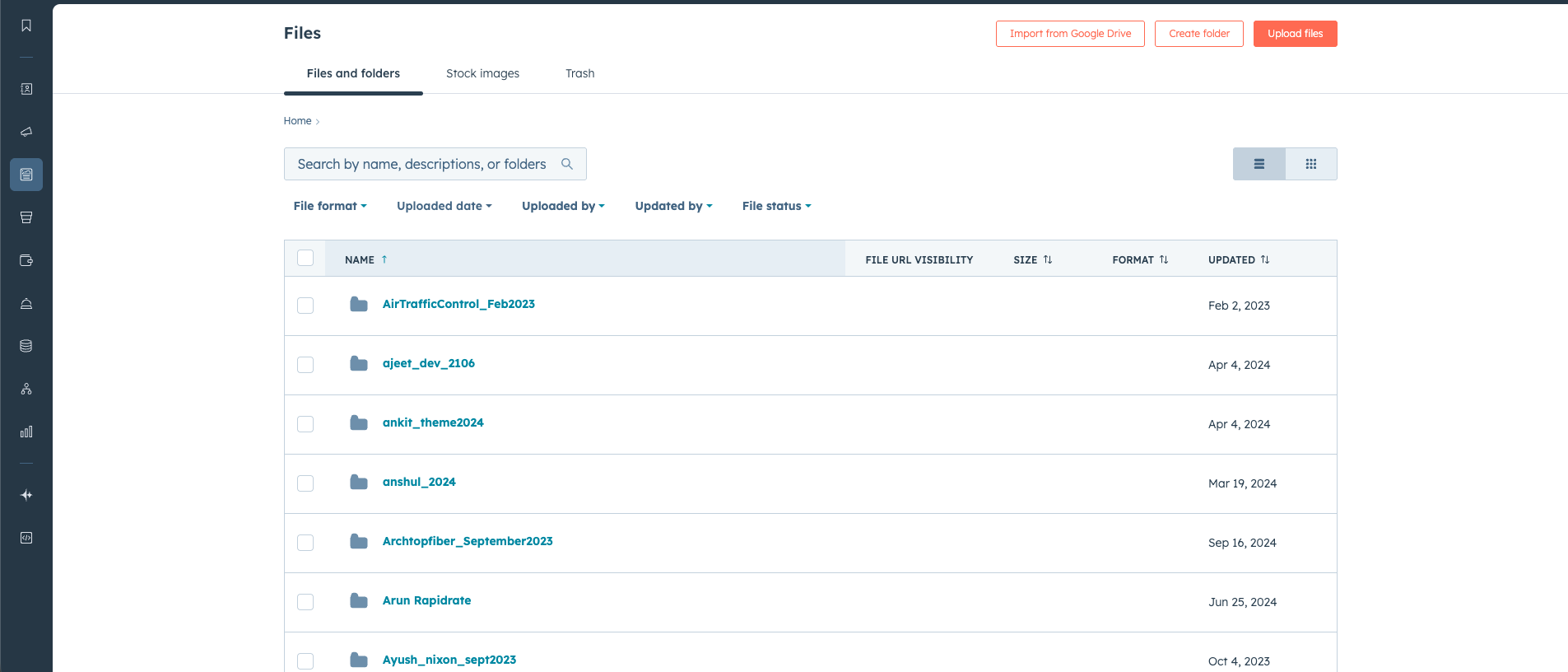
Uploading Files in HubSpot
Uploading files is straightforward in HubSpot Content Hub.
To upload a file:
- Navigate to Content → Files
- Click Upload Files
- Select files from your computer
- Confirm the upload
The files will then appear in the file manager and become available for use across the website.

Supported File Types
HubSpot supports a wide range of file formats.
Common supported file types include:
- Images: JPG, PNG, GIF, SVG
- Documents: PDF, DOC, XLS
- Media: MP4 and other video formats
- Web assets: CSS, JS, and font files
These file types cover most media needs for website development.
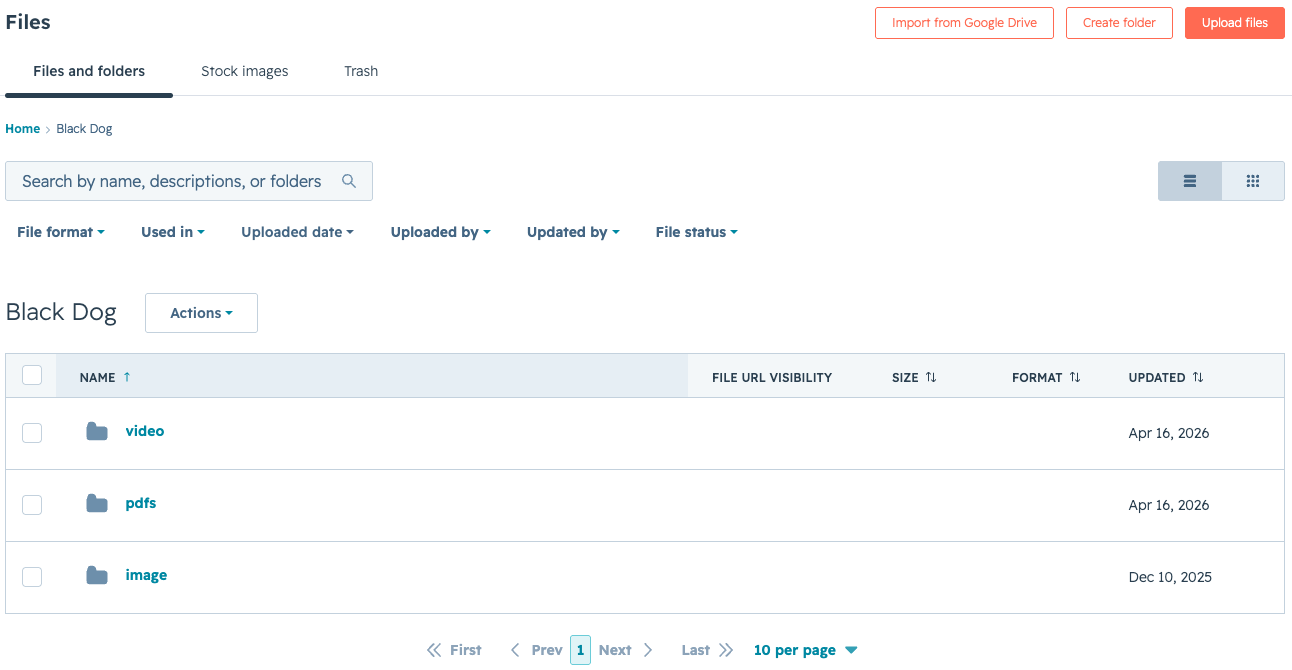
Organizing Files with Folders
As the media library grows, organizing files becomes important.
HubSpot allows users to create folders to group files logically.
For example:
/blog-images
/product-assets
/downloadable-guides
/website-graphics
Organized folders make it easier to locate files later.
Key Takeaway
HubSpot Content Hub File Manager allows teams to upload, organize, and manage media assets used across the website. By understanding file upload limits, supported formats, and folder organization, businesses can maintain an efficient and scalable media library.
Have a Project in Mind?
Let’s talk about what you need and how we can make it happen.

Leave a reply