


.png)
.png)



The File Manager in HubSpot Content Hub is the central place where all media and files used on your website are stored. This includes images, PDFs, videos, documents, and other assets that appear across pages, blogs, landing pages, and emails.
Instead of uploading files separately for every page, HubSpot stores them in a single organized library. These files can then be reused across multiple pages and marketing assets.
Understanding how the HubSpot Content Hub File Manager works helps teams manage website assets efficiently and keep media files organized.
What Is the HubSpot Content Hub File Manager?
The File Manager is essentially a media library inside HubSpot.
It stores files such as:
- Website images
- Blog graphics
- Downloadable PDFs
- Marketing documents
- Videos and media files
- Icons and logos
These files can then be inserted into pages, blog posts, emails, and landing pages.
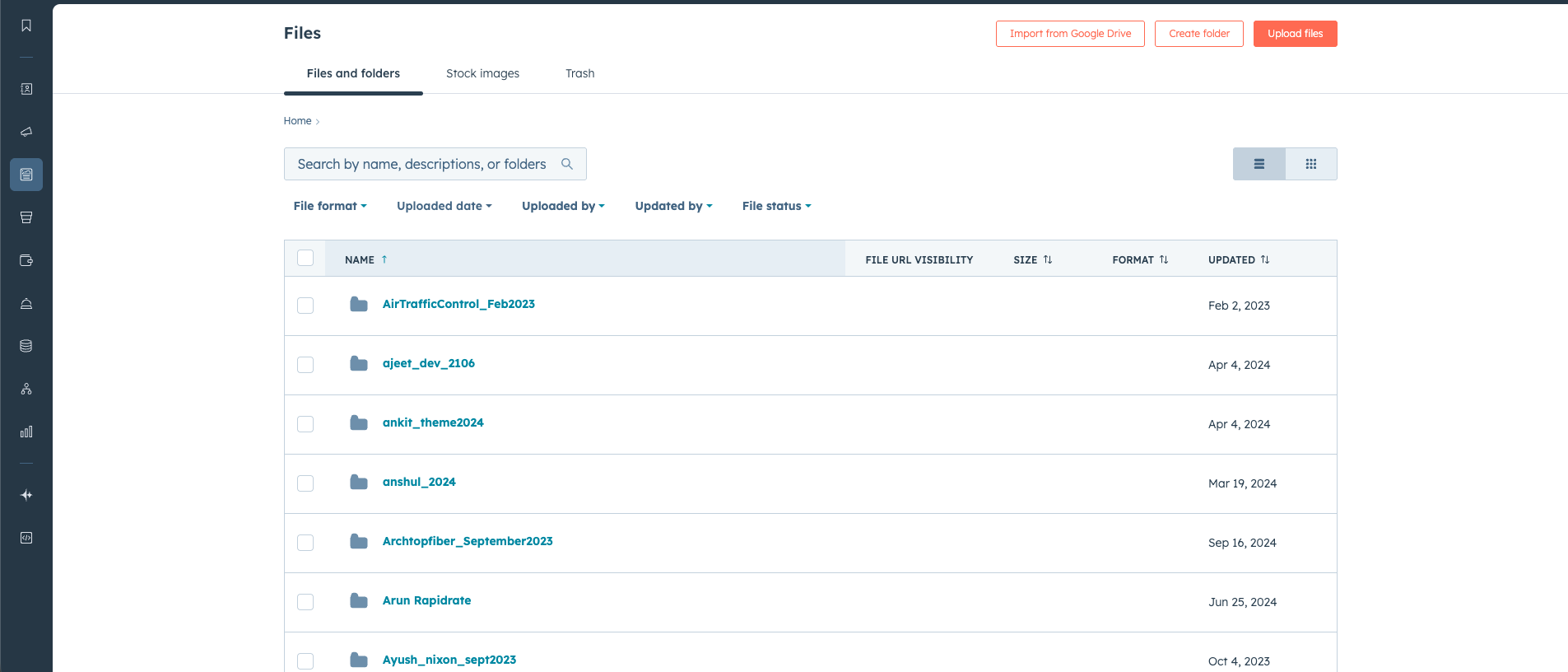
Where to Access the File Manager
You can access the HubSpot Content Hub File Manager by navigating to:
Content → File Manager
Once opened, the interface shows a list of all uploaded files along with folders used for organization.
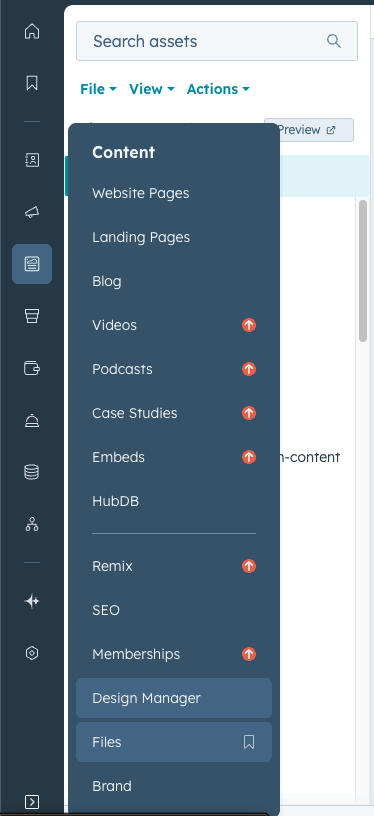
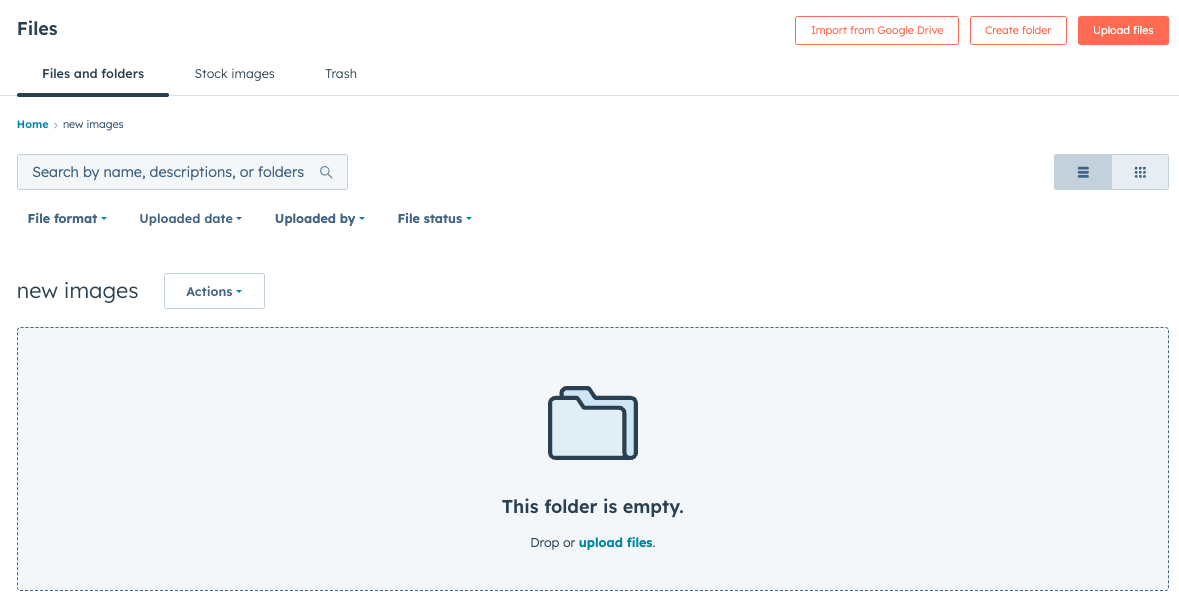
Uploading Files
Uploading files to the File Manager is straightforward.
To upload a file:
- Open the File Manager
- Click the Upload files button
- Select files from your computer
- Choose the folder where the file should be stored
Once uploaded, the file becomes available throughout your HubSpot portal.
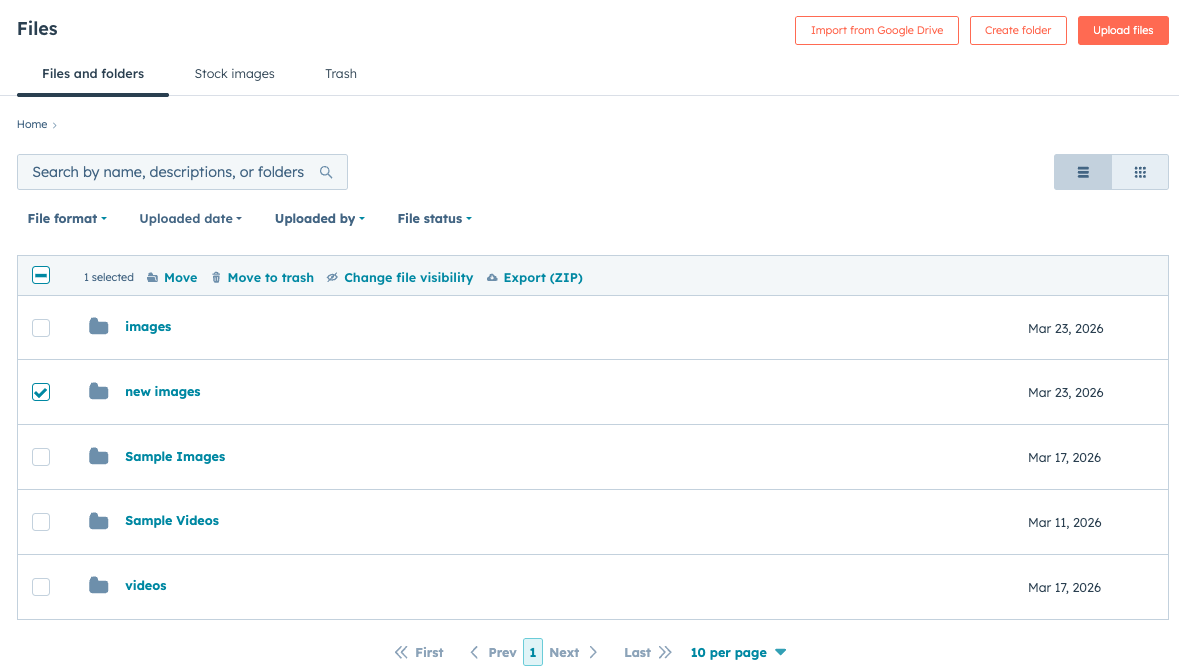
Organizing Files with Folders
As websites grow, the number of files stored in the File Manager can increase significantly.
HubSpot allows you to organize files using folders such as:
- Blog images
- Website graphics
- Campaign assets
- Documents and downloads
Organizing files into folders makes it easier to locate assets later.
Using Files on Pages
Files stored in the HubSpot Content Hub File Manager can be used in multiple places across the website.
For example, you can insert files into:
- Website pages
- Blog posts
- Landing pages
- Marketing emails
- Forms and downloads
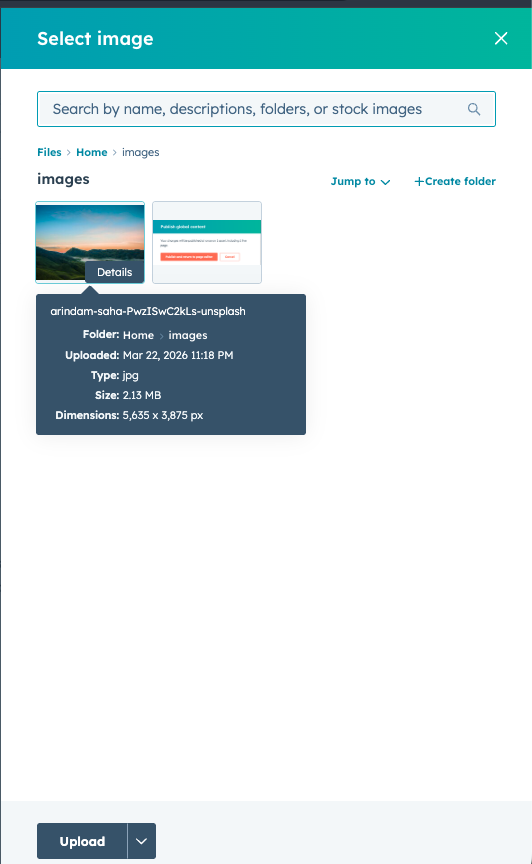
When adding an image or file inside the page editor, HubSpot allows you to select files directly from the File Manager.
Key Takeaway
HubSpot Content Hub File Manager acts as the central library for all media and files used on your website.By organizing and managing assets in one place, teams can easily reuse files across pages, blog posts, and marketing campaigns while keeping their website content organized.
Related Post

How Do HubSpot Content Hub Global Content and Reusable Sections Work?
Many websites include sections that appear on multiple pages, such as headers, footers, banners, or promotional blocks. Managing these sections individually on every page can be time-consuming. HubSpot Content Hub provides global content features...

How Do HubSpot Content Hub Content Workflows and Publishing Approvals Work?
When multiple people contribute to a website, it’s important to have a structured process for reviewing and publishing content. HubSpot Content Hub provides content workflows and publishing approval features that help teams manage this process.

How Do HubSpot Content Hub Workflows and Content Automation Work?
Automation plays a major role in modern marketing and website management. HubSpot Content Hub works closely with HubSpot’s automation tools to trigger actions based on user behavior, form submissions, or other interactions with website content.
Have a Project in Mind?
Let’s talk about what you need and how we can make it happen.

Leave a reply