Introduction
Every HubSpot Content Hub developer and marketer eventually hits the same wall: something breaks, the error message is vague, and HubSpot's documentation covers the happy path but not the failure mode you're staring at.
We've been building on HubSpot CMS — now Content Hub — since 2011. Across more than 100,000 pages and 15,000 migrations, our team has hit, diagnosed, and fixed virtually every error this platform can produce. Most of these fixes have lived in our internal documentation and our developers' heads. This post is us finally writing them down.
These are the 15 issues we fix most often, with the exact diagnosis and fix for each. Bookmark this page; if you work on Content Hub regularly, you'll be back.
Table of Contents
- Editor & Publishing Errors
- Template, Module & HubL Errors
- Domain, SSL & URL Errors
- Forms, Data & Integration Errors
- A Debugging Workflow That Catches 90% of Content Hub Issues
- Frequently Asked Questions
- When to Stop Debugging and Call In Help
Editor & Publishing Errors

2. My changes aren't showing on the live page
The symptom: You edit a page, hit publish, open the live URL and the old version is still there. Sometimes for minutes, sometimes seemingly forever.
What's actually happening: Three different mechanisms cause this, and they need different fixes: browser caching (most common), HubSpot's CDN cache (second), or the one that catches people out i.e. you edited a different variation, language version, or even a different page with a similar name. We've lost count of how many 'caching bugs' turned out to be edits made to a cloned staging page.
The fix:
- First, confirm you edited the right page: check if the URL in the editor's settings tab matches the URL you're viewing. Watch out for language variants and A/B variations
- Confirm the page actually published - look for the green 'Published' state, not 'Published with unpublished changes'
- Hard-refresh your browser (Ctrl+Shift+R / Cmd+Shift+R) or test in an incognito window
- If it's still stale, bypas the cache by using a URL parameter ?hsCacheBuster=<A random number> eg. thewebplant.com?hsCacheBuster=120626
- For CSS/JS changes specifically: HubSpot fingerprints asset URLs, but aggressive corporate proxies sometimes cache them anyway. Append a query string like ?v=2 to the asset link in your template as a temporary cache-buster
How to prevent it: Train content editors to check the publish state indicator and to preview using the editor's preview link (which bypasses cache) rather than the live URL during active editing sessions.
3. The page editor won't load — it just keeps spinning
The symptom: You open a page for editing and the editor never finishes loading. Sometimes it loads but drag-and-drop doesn't respond. Other pages in the same portal work fine.
What's actually happening: In our experience this is nearly always one of two things: a module on the page with JavaScript that errors out inside the editor's iframe context (the editor is less forgiving than the live page), or a browser extension interfering — ad blockers and privacy extensions are repeat offenders because the editor loads resources from multiple HubSpot domains.
The fix:
- Open the page in an incognito window with extensions disabled.
- If incognito doesn't help, open DevTools (F12) → Console while the editor loads and look for JavaScript errors. The failing module's name usually appears in the stack trace
- Common module-level cause: JS that manipulates the DOM on load without checking whether it's running in the editor. Wrap such code in a check — HubSpot exposes editor context, or simply test for the editor's query parameters
- As a workaround to unblock content editors immediately: edit the page via a cloned version with the offending module removed, then have a developer fix the module
- If nothing loads in any portal page, check HubSpot's status page (status.hubspot.com) before debugging further — editor outages are rare by they do happen
How to prevent it: In custom module JS, always guard editor-incompatible code. A simple pattern: skip DOM-heavy initialization when the page is being rendered inside the editor preview.
4. Publish button in page editor is disabled or shows Not Authorised
The symptom: A team member opens a page or blog post and gets a permissions error, even though they 'should' have access.
What's actually happening: HubSpot's content permissions are layered, and the error doesn't tell you which layer is blocking. The possibilities, in the order we check them: user-level content permissions (can they edit website pages at all?), asset partitioning by team (Enterprise feature — the page belongs to a team the user isn't in), domain-level publishing permissions, or the page is simply locked by another user's active editing session.
The fix:
- Check user permissions: Settings → Users & Teams → the user → Permissions → Marketing section. Verify 'Website pages' or 'Blog' edit/publish rights
- If you're on Enterprise with Business Units/Brands or content authorization workflow enabled: check the asset's team assignment (in the page's settings) against the user's team membership
- Check whether publishing rights are domain-restricted: some portals restrict publish (but not edit) per domain
- If permissions all look right, have the user log out and back in — permission changes don't always propagate to active sessions
- Check whether another user has the page open
How to prevent it: Use role templates instead of individual permission assignments, and document which teams own which content sections. Most permission confusion comes from one-off permission grants nobody remembers making.
Template, Module & HubL Errors
My drag-and-drop areas aren't showing in the editor
The symptom: A page built on a template with drag-and-drop sections shows no editable areas, or new dnd_area tags added to a template don't appear on existing pages.
What's actually happening: This is one of Content Hub's most misunderstood behaviors: drag-and-drop area content is bound to the page at creation time. If you add a dnd_area to a template after pages were created from it, existing pages will not get the new area — only newly created pages will. Similarly, pages created from a template before it had dnd_areas can't gain them retroactively.
The fix:
- Confirm the template actually has {% dnd_area %} tags and they're valid (check Design Manager console)
- For the affected page, check when it was created relative to when the dnd_area was added to the template
- If the page predates the dnd_area: the practical fix is to create a new page from the updated template and migrate the content over. There is no supported way to retrofit dnd_areas onto existing pages
- For bulk situations (e.g., 50 pages on an old template), weigh content migration cost vs. living with the old layout. For large batches, the HubSpot CMS Pages API can automate the recreate-and-copy workflow to some extent
- If the dnd_area shows but specific modules inside won't drag: check whether those modules have 'Available for pages' enabled in their module settings
How to prevent it: Finalize your template's drag-and-drop structure before creating pages at scale. When templates must evolve, version them (template-v2) rather than editing in place, so you always know which pages are on which structure.
Module not found — my module shows as a red error box
The symptom: A page that worked yesterday now shows a red error placeholder where a module used to be, with a message about the module being missing or not found.
What's actually happening: The module was deleted, moved, or renamed in Design Manager. Unlike pages, modules in Design Manager are referenced by path/ID, and moving a module between folders or deleting it breaks every page using it. The most common real-world cause we see: someone 'cleaning up' the Design Manager without checking dependents.
The fix:
- In Design Manager, enable 'Show deleted files' from the folder options and look for the missing module — deleted modules can be restored in place, which fixes all affected pages instantly
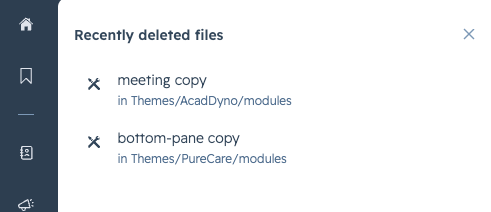
- If the module was moved rather than deleted, moving it back to its original path also restores references
- If neither is possible (e.g., it was deleted long ago and purged), you'll need to rebuild the module and replace it on every affected page manually
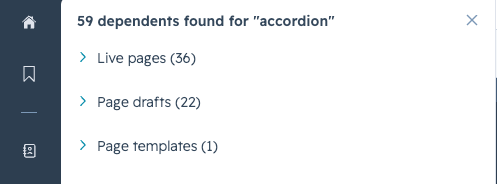
- To find every affected page: right-click any module in Design Manager → 'Show dependents' lists everything using it. For the deleted module scenario, HubSpot's CMS Pages API or a crawl of your sitemap looking for the error markup finds affected pages
- After restoring, spot-check pages — module field values usually survive, but verify
How to prevent it: Before deleting or moving anything in Design Manager, always run 'Show dependents'. Make this a hard rule for everyone with Design Manager access. Cleanup without dependency checks is the #1 self-inflicted Content Hub wound we see.
My HubL code throws 'unknown tag' or syntax errors — but the code looks correct
The symptom: You paste HubL code from documentation, a blog post, or a colleague's message, and Design Manager flags syntax errors on lines that look perfectly fine.
What's actually happening: Nine times out of ten, this is invisible character corruption from copying formatted text: smart quotes (“ ”) instead of straight quotes (" "), non-breaking spaces instead of regular spaces, or em-dashes where hyphens should be. Word processors, email clients, Slack, and many websites silently convert these characters. HubL's parser rejects them, but they're visually nearly identical to the correct characters.
The fix:
- Retype the quotes and spaces on the flagged lines manually — don't copy them again from the same source
- Or paste the code into a plain-text editor (VS Code, Sublime) with 'render whitespace' enabled to spot non-breaking spaces, then fix and re-copy
- In VS Code, the extension 'Gremlins tracker' highlights invisible problem characters automatically — our developers run it by default
- Check for curly quotes specifically in filter arguments and string comparisons — fails where fallback works
- If the error persists after character cleanup, then check actual syntax: unclosed tags, misspelled filters, or using Jinja2 syntax that HubL (Jinjava) doesn't support
How to prevent it: Copy code only from plain-text sources, and standardize on a real code editor for anything beyond trivial edits. Never route code through Word, Google Docs, or email.
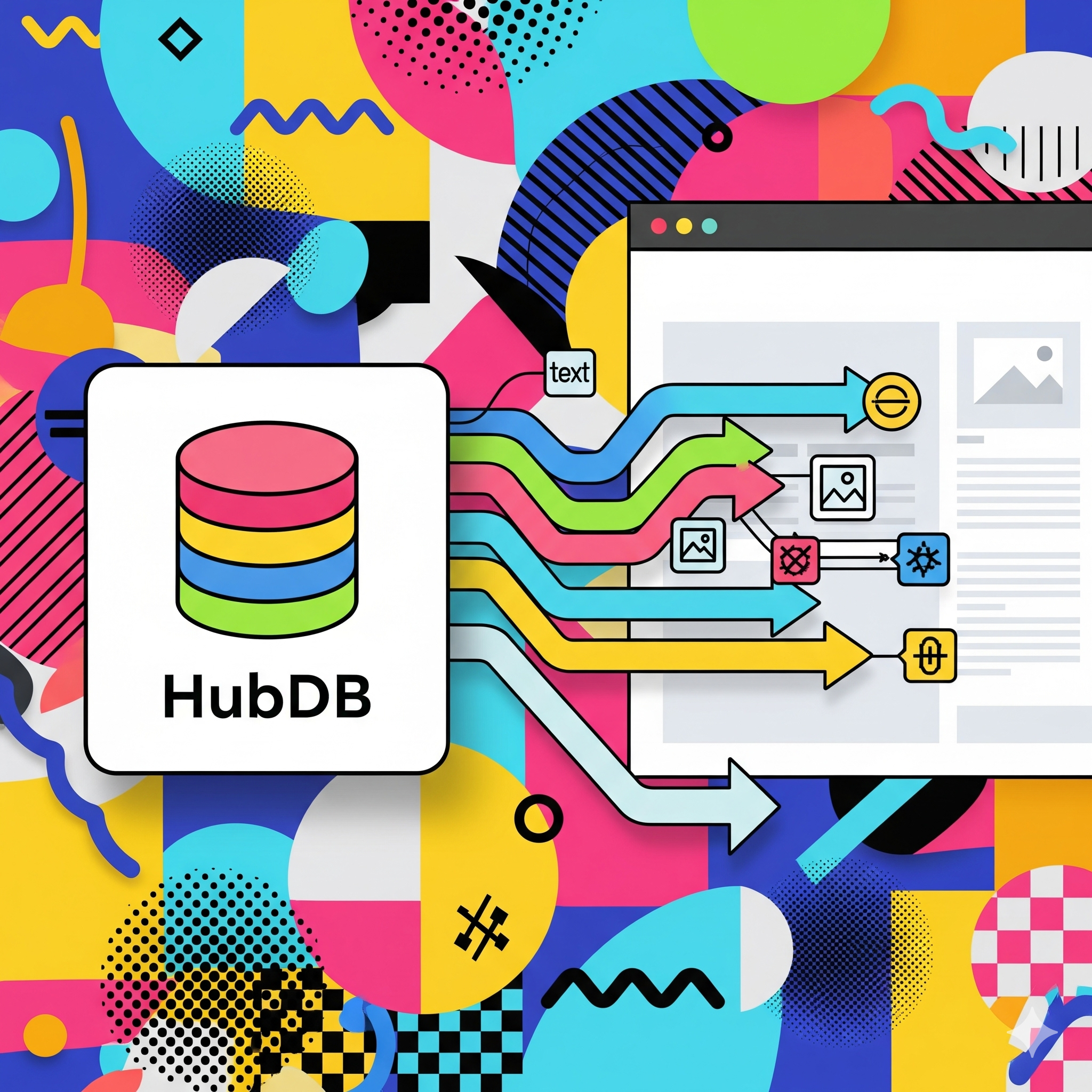
My HubDB query returns nothing — but the table has rows
The symptom: A HubDB-driven page or module renders empty. The table clearly has data when you open it in HubSpot, but hubdb_table_rows() returns an empty result.
What's actually happening: The cause we see most often by a wide margin: the table rows exist as drafts but were never published. HubDB has a two-state model — editing rows updates the draft version, and nothing reaches the live API until you click 'Publish' on the table. Second most common: querying by the wrong table ID after a table was cloned or recreated. Third: filter syntax errors that silently match nothing.
The fix:
- Open the table in HubSpot and check for the 'Publish' button being active — if it is, you have unpublished draft changes. Publish the table

- Verify the table ID in your code matches the actual table (the ID is in the table's URL). After clone/recreate operations, IDs change but code often doesn't
- Test the query without filters first: — if that returns data, your filter syntax is the problem
- Check filter syntax carefully: hubdb_table_rows(id, "column=value") uses specific operators (eq, ne, contains, gt...) and column names must match the internal column name, not the label
- If using dynamic pages: verify the page's HubDB settings reference the right table and the row-level slugs are populated and unique
How to prevent it: Make 'publish the table' part of every HubDB editing workflow — it's the step many content editors forget. For critical HubDB-driven pages, add a fallback message in the template when zero rows return, so an empty state is obvious rather than silently blank.
Maximum recursion depth exceeded / my template times out
The symptom: A page fails to render with a recursion error, or renders extremely slowly — sometimes only after a recent 'minor' template change.
What's actually happening: Recursion errors come from templates or macros that include themselves, directly or through a chain (A includes B, B includes A). Timeouts and slow renders usually come from HubL doing too much work per render: HubDB queries inside loops, CRM object fetches repeated per item, or nested loops over large datasets. We once debugged a page trying to make 100+ HubDB calls per render because a query sat inside a for-loop instead of outside it.
The fix:
- For recursion: trace your include/import chain. Search the involved files for {% include %} and {% import %} statements and map who includes whom
- For slow renders: find every hubdb_table_rows(), crm_objects(), and related data-fetch call, and check whether any sits inside a {% for %} loop
- Restructure to fetch once, then loop: set the query result to a variable before the loop, and reference the variable inside it
- Cache repeated lookups in variables — even within a single render, calling the same function ten times costs ten times the work
- If you genuinely need per-item data fetches, reconsider the data model: a HubDB join column or a restructured table usually eliminates the need
How to prevent it: Code-review every template that touches HubDB or CRM data with one question: 'how many data calls does one page render make?' The answer should almost always be a single-digit number.
Domain, SSL & URL Errors
SSL certificate is still being provisioned — and it's been hours
The symptom: You've connected a new domain, DNS is updated, but HubSpot still shows SSL as pending and the site shows certificate warnings.
What's actually happening: HubSpot provisions SSL automatically once it can verify your DNS, so a stuck 'provisioning' state means verification is failing. The usual suspects: the CNAME record hasn't actually propagated (or was entered with a typo — trailing dots and copy-paste artifacts are common), an old CAA record on the domain is blocking HubSpot's certificate authority from issuing, or DNSSEC/proxy settings at the DNS provider (Cloudflare's orange-cloud proxy is a classic) are masking the real records.
The fix:
- Verify the CNAME from outside your network: check the exact hostname at dnschecker.org against the value HubSpot gave you. Look for typos and verify it's a CNAME, not an A record
- If you use Cloudflare for DNS: set the record to 'DNS only' (grey cloud) — HubSpot must see the real CNAME, not Cloudflare's proxy
- Check for CAA records: run a CAA lookup on your root domain. If CAA records exist, they must permit HubSpot's certificate authorities — or remove the CAA records if your security policy allows
- Confirm there's no conflicting record on the same hostname (an old A record alongside the new CNAME breaks resolution at some providers)
- If everything checks out and it's been more than a few hours, contact HubSpot support with your DNS evidence — they can see exactly which verification step is failing
How to prevent it: When planning go-lives, set DNS records 24-48 hours before the cutover with low TTLs, and run the dnschecker verification before the launch window, not during it.
I set up a redirect but it's not working — or I've created a redirect loop
The symptom: A URL redirect you added in HubSpot either does nothing, or the browser shows 'too many redirects'.
What's actually happening: Redirects-not-firing usually means the source URL pattern doesn't actually match what you think (query strings, trailing slashes, and protocol differences all matter), or a live page still exists at the source URL — HubSpot serves real pages before consulting redirects. Redirect loops come from chains: A redirects to B, B redirects (often via an older rule or a domain-level www/https rule) back to A. Flexible pattern redirects with greedy wildcards are the most common loop source we untangle.
The fix:
- Check if a live page still exists at the source URL — unpublish or delete it; redirects don't override live content
- Test the exact source URL including trailing slash variations. In Settings → Content → Domains & URLs → URL Redirects, check whether 'match query strings' and trailing-slash handling options align with your real traffic
- For loops: use a redirect tracer (httpstatus.io or curl -IL) to see the full redirect chain — the loop becomes obvious in the chain output
- Review flexible pattern redirects for overly broad wildcards that catch their own destination URLs
- Check redirect priority order — HubSpot processes redirects in priority order, and a broad rule above a specific one swallows it
How to prevent it: Keep a redirect log (a simple spreadsheet) of every rule added, why, and when. During migrations, test the top-50 redirects as a launch-day checklist item, with a redirect tracer rather than just a browser.
My cloned page is hurting SEO — Google shows the wrong URL
The symptom: After cloning pages to create similar content, search results show the wrong page, or Search Console reports 'Duplicate, submitted URL not selected as canonical'.
What's actually happening: When you clone a page in HubSpot, the clone can carry over the original's customized canonical URL if one was set. The result: page B telling Google 'the real version of me is page A'. Google obeys, and page B never ranks. This is brutal because nothing looks broken — the page renders perfectly. We find this in many portal audits we run where teams clone pages as a workflow.
The fix:
- Open the affected page → Settings → Advanced Options → check the Canonical URL field
- If it points to the original page, clear it or set it to the page's own URL
- Audit at scale: crawl your site with Screaming Frog and compare 'Canonical Link Element' against 'Address' — mismatches surface instantly
- After fixing, request re-indexing for affected pages in Google Search Console
- Also check cloned pages for carried-over meta titles/descriptions — same clone behavior, same invisible problem
How to prevent it: Add 'check canonical and meta' to your page-clone checklist. Better: build new pages from templates rather than clones when the content is genuinely different.
Forms, Data & Integration Errors
01.
Form submissions aren't reaching the CRM
The symptom: Visitors submit a form, see the thank-you state, but the submissions never appear in HubSpot — or appear without expected data.
What's actually happening: If it's a native HubSpot form: check whether you're looking at the right portal (agencies juggling portals embed forms from the wrong account more often than anyone admits), or whether the form was recreated and the page still embeds the old form's ID. If it's a non-HubSpot form you expect HubSpot to capture: the non-HubSpot forms collection feature has real limitations — it doesn't capture forms in iframes, forms built with JavaScript frameworks that don't fire normal submit events, or password/sensitive-marked fields. And on any form, ad-blockers can prevent the tracking script from loading at all.
The fix:
- Identify the form's portal ID and form ID from the embed code on the live page, and confirm they match the form you're checking in HubSpot
- Submit a test with a unique email and search for it in Contacts (it may be there with attribution you didn't expect)
- For non-HubSpot forms: confirm 'Collect data from website forms' is on (Settings → Marketing → Forms), and verify the form isn't in an iframe and uses a standard submit event
- Check the page in DevTools → Network for the forms API call firing on submit (look for requests to hsforms or forms.hubspot endpoints) — if it never fires, the script is blocked or erroring
- If submissions arrive but fields are missing: check field mapping — non-HubSpot forms map fields by name attribute heuristics, and unusual field names don't map cleanly
How to prevent it: For anything business-critical, use native HubSpot forms (embedded or via API) rather than relying on non-HubSpot form collection. Reserve scraped collection for low-stakes forms.
02.
jQuery is not defined — my theme's JavaScript broke
The symptom: Visitors submit a form, see the thank-you state, but the submissions never appear in HubSpot — or appear without expected data.
What's actually happening: If it's a native HubSpot form: check whether you're looking at the right portal (agencies juggling portals embed forms from the wrong account more often than anyone admits), or whether the form was recreated and the page still embeds the old form's ID. If it's a non-HubSpot form you expect HubSpot to capture: the non-HubSpot forms collection feature has real limitations — it doesn't capture forms in iframes, forms built with JavaScript frameworks that don't fire normal submit events, or password/sensitive-marked fields. And on any form, ad-blockers can prevent the tracking script from loading at all.
The fix:
- Identify the form's portal ID and form ID from the embed code on the live page, and confirm they match the form you're checking in HubSpot
- Submit a test with a unique email and search for it in Contacts (it may be there with attribution you didn't expect)
- For non-HubSpot forms: confirm 'Collect data from website forms' is on (Settings → Marketing → Forms), and verify the form isn't in an iframe and uses a standard submit event
- Check the page in DevTools → Network for the forms API call firing on submit (look for requests to hsforms or forms.hubspot endpoints) — if it never fires, the script is blocked or erroring
- If submissions arrive but fields are missing: check field mapping — non-HubSpot forms map fields by name attribute heuristics, and unusual field names don't map cleanly
How to prevent it: For anything business-critical, use native HubSpot forms (embedded or via API) rather than relying on non-HubSpot form collection. Reserve scraped collection for low-stakes forms.
03.
My stylesheet changes aren't applying — the CSS is right but the page ignores it
The symptom: You edit the theme's CSS, publish, and the live page looks unchanged — or only some rules apply.
What's actually happening: Beyond simple caching (see #2), the Content Hub-specific causes are: editing a parent theme's file while the site runs a child theme that overrides that exact file; theme settings (colors, fonts set in the theme editor UI) generating CSS that out-specifies your stylesheet rules; or module-scoped CSS (in the module's own CSS pane) overriding theme CSS because it loads later. The child-theme one is the silent killer — everything about your edit is correct, it's just being shadowed by another file.
The fix:
- Check whether the site uses a child theme: in Design Manager, child themes show their parent relationship. If your edited file exists in both parent and child, the child wins — edit the child's copy
- Inspect the live element in DevTools and look at which file the winning rule comes from — this tells you in seconds whether you're fighting a child theme, theme settings output, or module CSS
- If theme settings are overriding: either change the value in the theme settings UI (correct approach for brand-level values) or increase your rule's specificity deliberately
- If module CSS is overriding: move the rule into the module's CSS pane, or scope your theme rule more specifically than the module's selector
How to prevent it: Adopt a single source of truth for styles: brand-level values live in theme settings, layout rules in theme CSS, component rules in module CSS — and document which is which. Specificity wars are a symptom of unclear ownership.
A Debugging Workflow That Catches 90% of Content Hub Issues
Across all fifteen issues above, the diagnostic pattern is consistent. When something breaks on Content Hub, run this sequence before deep-diving:
- Reproduce in incognito — eliminates browser extensions and stale cache in one step
- Check the publish state — of the page, the template, the module, and (for HubDB) the table. Draft-vs-published mismatches cause more 'bugs' than actual bugs
- Open DevTools console — JavaScript errors and failed network requests point at the failing component by name
- Check Design Manager's console — HubL syntax issues are flagged with line numbers
- Check dependents and dependencies — 'Show dependents' before blaming the page; the problem is often one level up in a shared module or partial
- Isolate by elimination — clone the page, remove components one at a time until the error disappears
- Only then check HubSpot's status page and contact support — with everything you've found, so the ticket starts at step five instead of step one

Frequently Asked Questions
Why does my HubSpot page show 'There was an error rendering this template'?
This error means HubL failed to compile — most often an unclosed {% if %} or {% for %} tag, a reference to a deleted module or partial, or a field reference that doesn't exist on the page. Check Design Manager's console for the line number, and use 'Show deleted files' to restore anything that was removed.
Why aren't my changes showing on my live HubSpot page?
In order of likelihood: browser cache (hard refresh or incognito), the page has unpublished changes, you edited a different page/variation than the one you're viewing, or HubSpot's CDN is serving a cached version (purge via Settings → Domains & URLs).
How do I restore a deleted module in HubSpot Design Manager?
In Design Manager, open the folder options and enable 'Show deleted files'. Deleted modules and templates appear greyed out and can be restored in place — which instantly fixes every page that referenced them.
Why is my HubDB data not showing on my page?
The most common cause is unpublished draft rows — HubDB tables must be explicitly published after editing for changes to reach live pages. Also verify the table ID in your code and test your query without filters to isolate filter syntax issues.
Why is my SSL certificate stuck on 'provisioning' in HubSpot?
HubSpot can't verify your DNS. Check that the CNAME record matches HubSpot's value exactly (use dnschecker.org), disable any DNS proxy like Cloudflare's orange cloud for that record, and check for CAA records blocking certificate issuance.
Does HubSpot Content Hub still include jQuery by default?
Older accounts load jQuery by default; newer accounts don't. If your theme depends on it, enable it under Settings → Website → Pages, or better, migrate the theme JavaScript to vanilla JS.
When to Stop Debugging and Call In Help
Most of the issues above are fixable in under an hour once you know where to look. But some situations justify bringing in a specialist: rendering errors across many pages after a Design Manager cleanup, migration-related redirect and canonical issues at scale, or performance problems rooted in theme architecture.
We've spent 15 years inside HubSpot's CMS — debugging, migrating, and rebuilding. If you're stuck on something this post didn't cover, or you'd rather hand the whole thing to a team that's seen it before, we offer technical audits and fixed-scope rescue work for exactly these situations.
Talk to us — the first 30 minutes are free, and there's a good chance we've fixed your exact error before.
You might also like
How to Optimize HubSpot Content Hub Pages for Performance (2026 Guide)
Introduction Website performance has stopped being a 'nice to have' — it's a ranking factor, a conversion factor, and a trust factor all at once. Slow pages don't just frustrate visitors; they actively cost you leads, revenue, and search visibility.
Optimizing Page Speed in HubSpot Content Hub: 2026 Update
Introduction Page speed in 2026 isn't just about user experience — it's measurable, ranking-relevant, and revenue-impacting. Google's algorithm now factors Core Web Vitals into search ranking, and faster sites consistently outperform slower...
HubSpot Content Hub Pricing in India: 2026 Plans, INR Costs & GST Guide
Introduction Page speed in 2026 isn't just about user experience — it's measurable, ranking-relevant, and revenue-impacting. Google's algorithm now factors Core Web Vitals into search ranking, and faster sites consistently outperform slower...


Leave a reply