


.png)
.png)

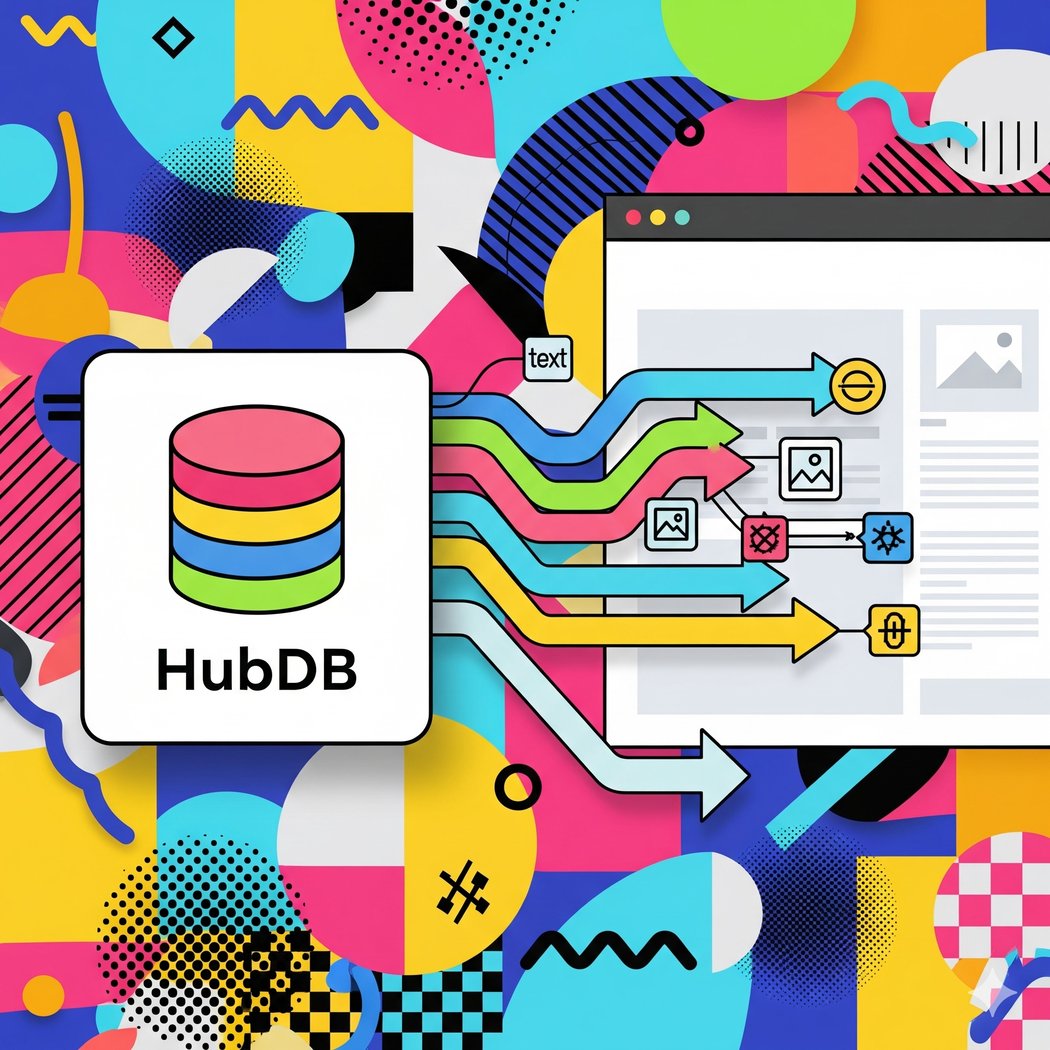

Harnessing HubDB for Creating Dynamic Pages in HubSpot
If you’ve ever wanted to manage dozens of similar pages without manually updating each one — or if you’re tired of copying and pasting repeating content — HubDB is your solution.
HubDB is HubSpot's dynamic content management tool that lets you:
- Create tables of structured content (like a spreadsheet)
- Build pages that automatically update when the data changes
- Filter and display information dynamically based on URL parameters, categories, or tags
Whether you're managing a team directory, product catalog, events list, or service location pages — HubDB lets you build it once and scale infinitely.
In this guide, you'll learn:
- What HubDB is and how it works
- Use cases for marketing and development teams
- How to build a dynamic page using HubDB
- Best practices for scalability and SEO
What Is HubDB?
HubDB is a database-like feature inside HubSpot CMS that stores rows of structured data — similar to an Excel sheet or a Google Sheet.
Each row represents a record (e.g., a team member, product, case study), and each column holds specific data (e.g., name, photo, link, description, tags).
You can then connect this data to a dynamic template and generate pages or page sections that update automatically when the table changes.
How Dynamic Pages Work in HubSpot with HubDB
Dynamic pages use a HubDB-powered template where:
- One template generates multiple URL paths (e.g., /team/jane-doe, /team/john-smith)
- The content of each page is pulled from the table row assigned to it
You can add filtering logic and display content using HubL, HubSpot’s templating language.
Example:
- Table = "Team Members"
- URL pattern = /team/{name}
- Data automatically renders based on URL and table match
One template = hundreds of dynamically generated pages — all manageable from a single table.
Final Thoughts
HubDB is one of the most underused but powerful tools in the HubSpot ecosystem.
It lets you:
- Create scalable, editable content libraries
- Reduce repetitive page building
- Enable marketers to update data without developers
- Improve site SEO and UX with data-driven, dynamic layouts
If your website is becoming hard to maintain — or your team wants to scale smarter — HubDB might be your answer.
You might also like

What Is HubSpot CMS Hub? A Beginner’s Guide 2026
Introduction If you're a growing business looking to scale your digital presence, improve your lead generation, and reduce dependence on developers, then HubSpot CMS Hub is a platform you should definitely consider.
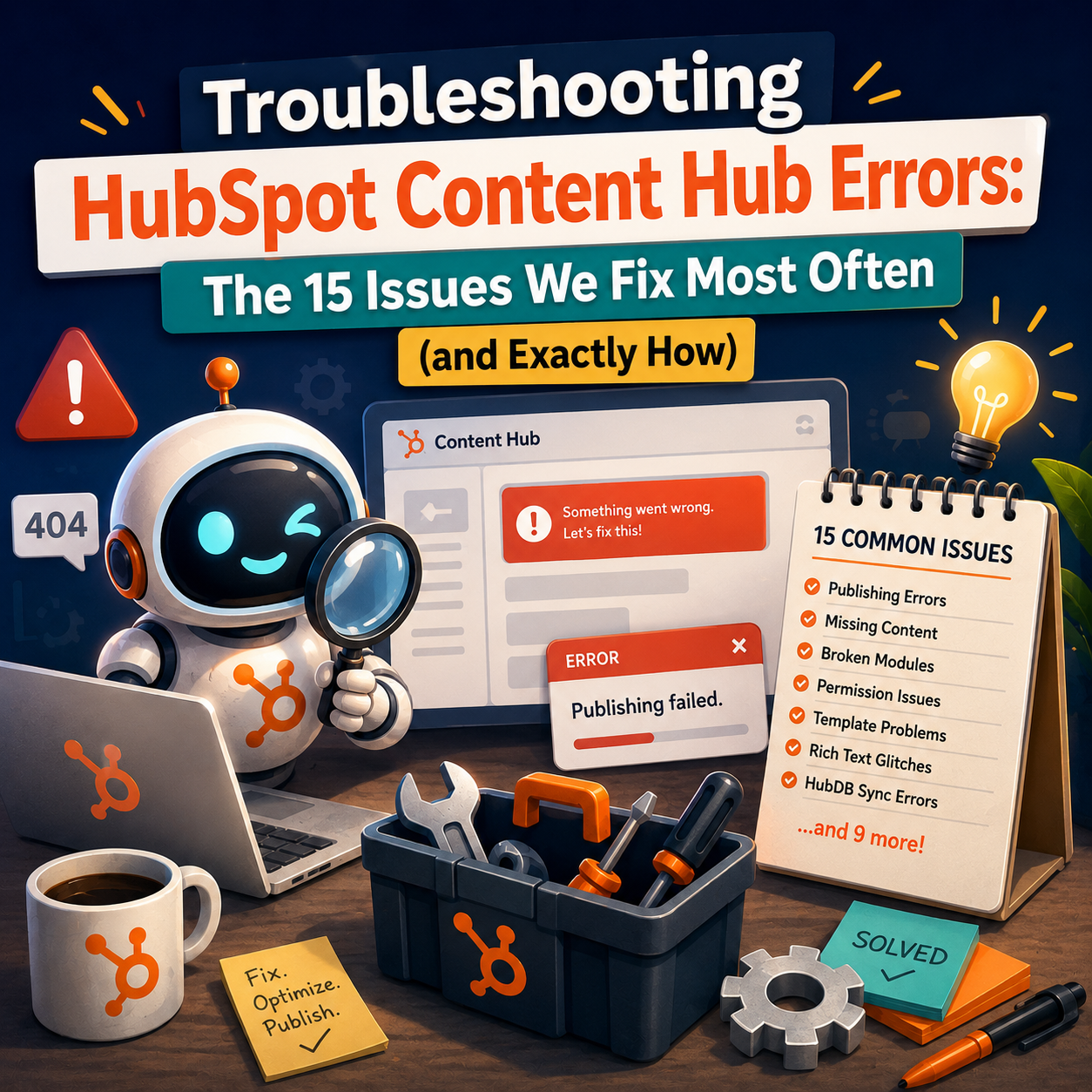
Troubleshooting HubSpot Content Hub Errors: The 15 Issues We Fix Most Often (and Exactly How)
Introduction Every HubSpot Content Hub developer and marketer eventually hits the same wall: something breaks, the error message is vague, and HubSpot's documentation covers the happy path but not the failure mode you're staring at.
How to Build SEO-Friendly Blogs on HubSpot CMS
Introduction Great content is only valuable if people can find it.
Have a Project in Mind?
Let’s talk about what you need and how we can make it happen.
