


.png)
.png)



Sometimes websites need functionality that goes beyond standard modules or page settings. HubSpot Content Hub provides custom code features that allow developers to add scripts and advanced code snippets to the website.
These scripts can be used for analytics, integrations, tracking pixels, or custom functionality that enhances the website experience.
Understanding how HubSpot Content Hub scripts and custom code features work helps teams extend the capabilities of their website while maintaining a structured development environment.
What Is Custom Code in HubSpot?
Custom code refers to scripts or code snippets that are added to a website to provide additional functionality.
Common examples include:
- Analytics tracking scripts
- Marketing tracking pixels
- Chat widgets
- Event tracking scripts
- Integration scripts from third-party tools
Custom code allows websites to connect with external services and track visitor activity.
Where Custom Code Can Be Added
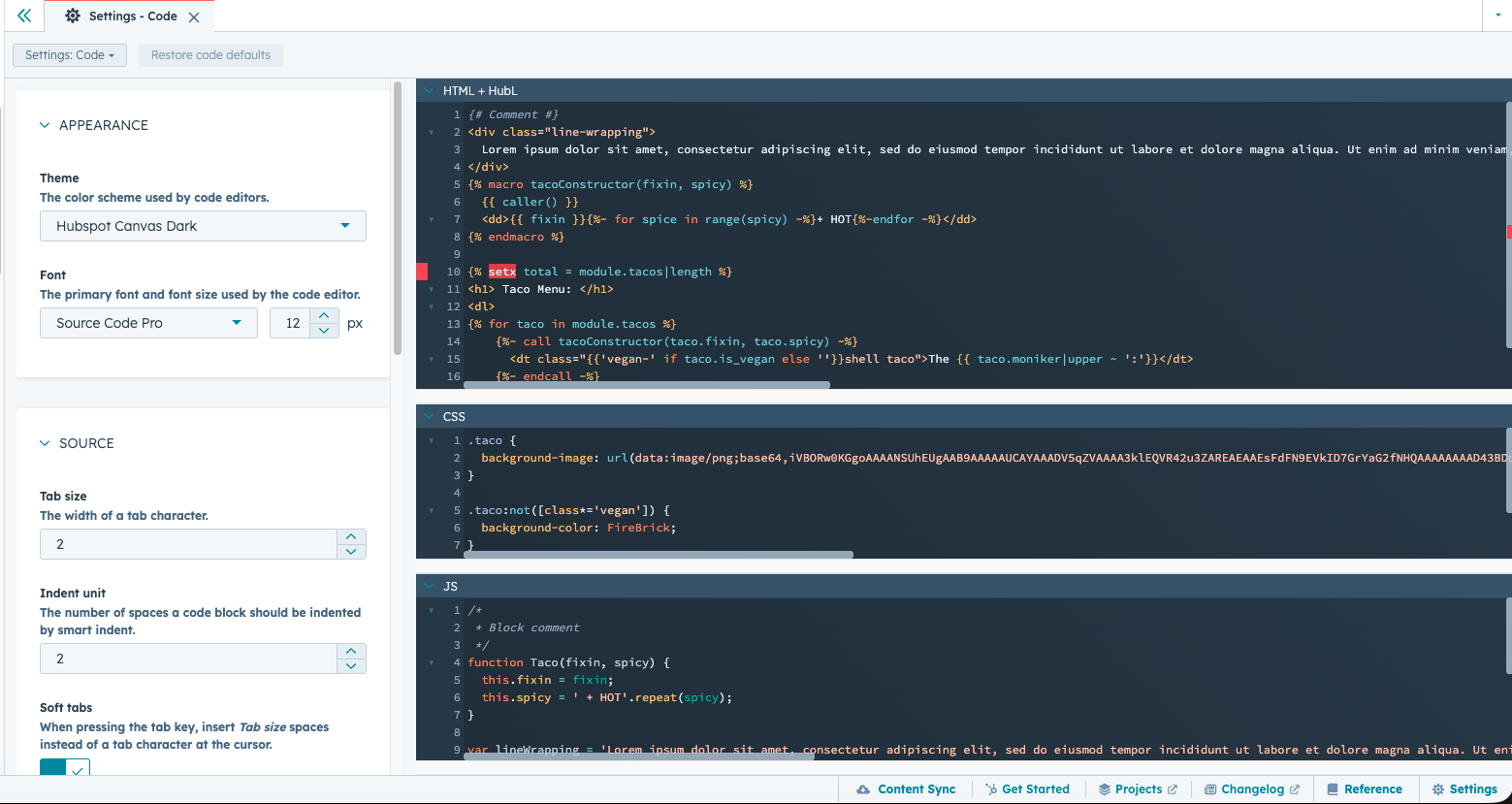
HubSpot provides multiple locations where scripts and custom code can be added.
These include:
- Site-wide header or footer code
- Individual page settings
- Custom HTML modules
- Theme templates
Each location serves different purposes depending on where the script needs to run.
Adding Site-Wide Scripts
Many tools require scripts to run on every page of the website.
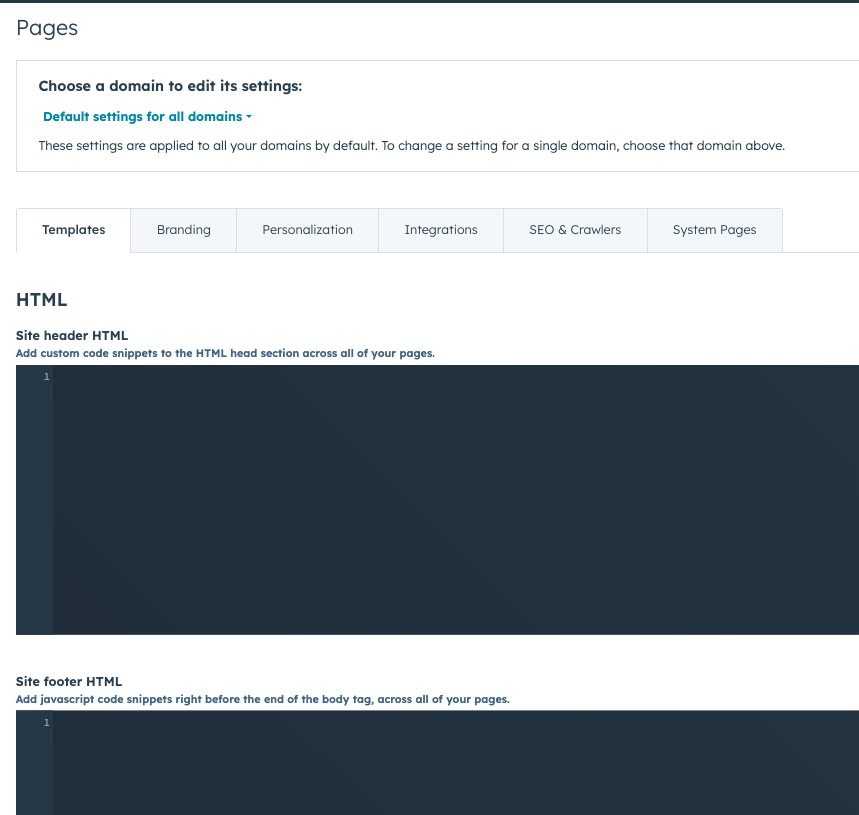
To add site-wide scripts in HubSpot Content Hub:
- Navigate to Settings → Website → Pages
- Locate the Site Header HTML or Site Footer HTML section
- Paste the script code
- Save the settings
Once saved, the script will load across all pages of the website.
Adding Scripts to Individual Pages
Sometimes scripts are only needed on specific pages.
In these cases, scripts can be added directly to page settings.
To add page-level scripts:
- Open the page editor
- Navigate to Settings → Advanced Options
- Insert the script in the header or footer code section
This ensures the script runs only on that page.
Using Scripts for Tracking and Analytics
Many businesses use scripts to track visitor behavior.
Examples include:
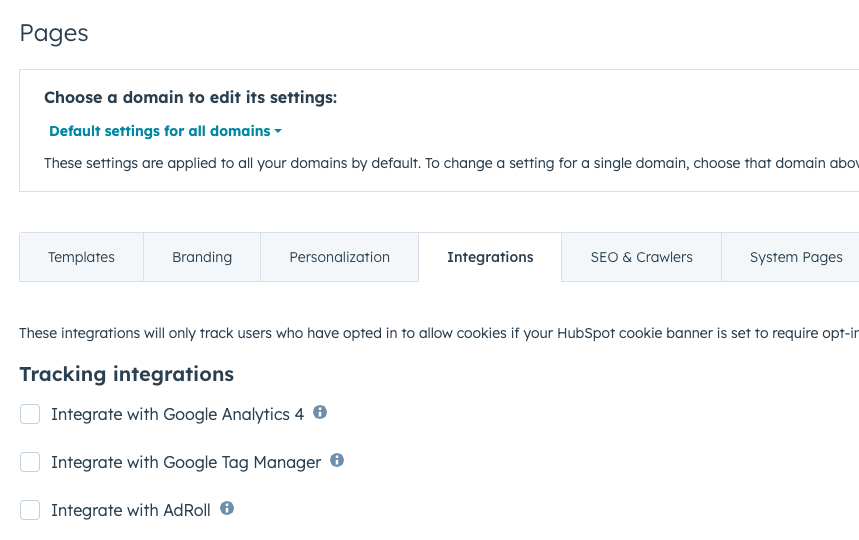
- Google Analytics tracking scripts
- Google Tag Manager
- Conversion tracking pixels
- Marketing attribution tools
These scripts help measure website performance and visitor interactions.
Key Takeaway
HubSpot Content Hub allows developers and marketers to add custom scripts that extend website functionality and integrate with external tools. By using site-wide or page-specific code settings, teams can implement analytics tracking, integrations, and interactive features while maintaining control over the website environment.
Related Post

How Does HubSpot Content Hub Design Manager Work?
The Design Manager is the primary development environment within HubSpot Content Hub. It is where developers create and manage the files that control how a website looks and functions.

How Do HubSpot Content Hub Folders and File Organization Work?
As websites grow, the number of images, documents, and media files stored in HubSpot Content Hub can increase quickly. Without proper organization, managing these assets becomes difficult. To solve this, HubSpot provides a folder system inside the...

How Do HubSpot Content Hub Custom HTML Modules Work?
Sometimes website editors need more flexibility than standard content modules provide. HubSpot Content Hub includes custom HTML modules, which allow users to add custom HTML code directly into a page.
Have a Project in Mind?
Let’s talk about what you need and how we can make it happen.

Leave a reply