



Once you’ve built dynamic pages using HubDB, the next step is making them actually usable.
A simple listing is not enough — users expect to filter by location, category, date, etc. This is exactly what makes platforms like BeeBuddy powerful.
In this guide, you’ll learn how to create fully filterable listings in HubSpot Content Hub using HubDB.
What Are Filterable Listings?
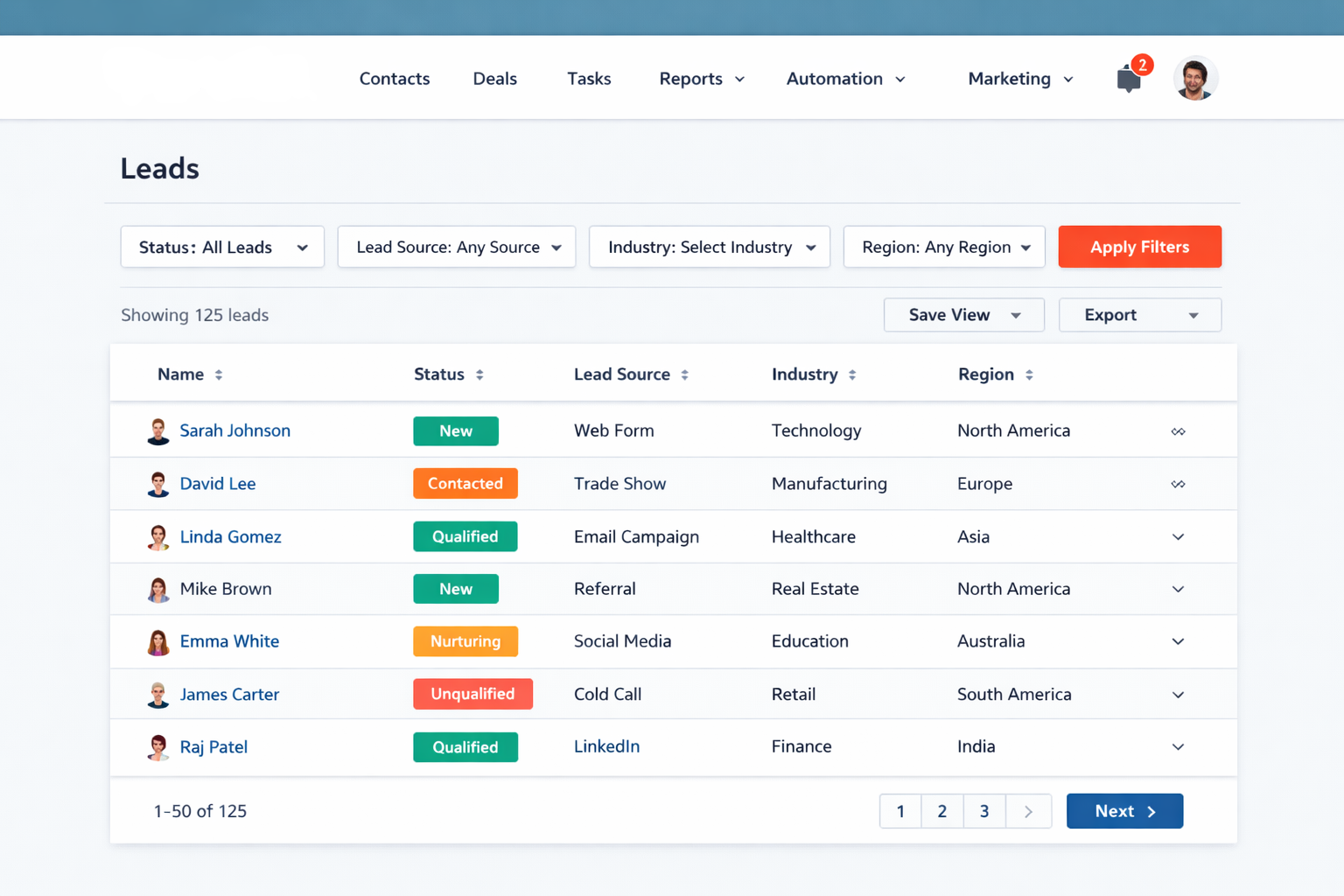
Filterable listings allow users to refine results based on specific criteria.
Examples:
- Filter by location → Delhi, Gurgaon, Noida
- Filter by category → Sports, Dance, STEM
- Filter by date → Upcoming events
Instead of scrolling through everything, users see only relevant results.
Step 1: Structure Your HubDB Table Properly
Before building filters, your HubDB must be structured correctly.
Example columns:
Name (Text)
Location (Text)
Category (Dropdown)
Date (Date)
Slug (Text)
👉 Important:
- Use Dropdown for Category (clean filtering)
- Keep values consistent (Delhi vs New Delhi → avoid mismatch)
Step 2: Capture Filter Values from URL
Filters in HubSpot typically work using query parameters.
Example URL:
?location=Delhi&category=Sports
Capture them in HubL:
{% set location = request.query_dict.location %}{% set category = request.query_dict.category %}
Step 3: Apply Filters to HubDB Query
Now filter your HubDB data dynamically:
{% set filters = [] %}{% if location %}
{% do filters.append("location=" ~ location) %}
{% endif %}
{% if category %}
{% do filters.append("category=" ~ category) %}
{% endif %}
{% set query = filters|join("&") %}
{% set rows = hubdb_table_rows(123456, query) %}
👉 This dynamically builds your filter query.
Step 4: Display Filtered Results
{% for row in rows %}<div class="listing">
<h3>{{ row.name }}</h3>
<p>{{ row.location }} | {{ row.category }}</p>
</div>
{% endfor %}
Step 5: Create Filter UI (Frontend)
Now build filter inputs:
Location Dropdown
<select onchange="applyFilters()"><option value="">All Locations</option>
<option value="Delhi">Delhi</option>
<option value="Gurgaon">Gurgaon</option>
</select>
Category Dropdown
<select onchange="applyFilters()"><option value="">All Categories</option>
<option value="Sports">Sports</option>
<option value="STEM">STEM</option>
</select>
Step 6: Update URL with JavaScript
<script>
function applyFilters() {
  const location = document.querySelector('[name="location"]').value;
  const category = document.querySelector('[name="category"]').value;

  let url = "?";

  if (location) url += "location=" + location + "&";
  if (category) url += "category=" + category;

  window.location.href = url;
}
</script>
👉 This reloads the page with filters applied.
Step 7: Add Date Filters (Advanced)
Example: Upcoming events only
{% set today = local_dt|datetimeformat('%Y-%m-%d') %}{% set rows = hubdb_table_rows(123456, "date__gt=" ~ today) %}
👉 Shows only future events
Step 8: Combine Multiple Filters
Example:
?location=Delhi&category=Sports&date=2026
HubL automatically applies all conditions.
Step 9: Handle Empty Results
{% if rows|length == 0 %}<p>No results found</p>
{% endif %}
🎯 REAL-WORLD USE CASE (Your Goldmine)
You can build:
🏫 BeeBuddy-style listings
- Filter by area
- Filter by age group
- Filter by activity
📅 Event platforms
- Date filters
- Location filters
🛍 Product directories
- Category filters
- Price filters
⚡ PRO TIPS (IMPORTANT)
- Keep filters simple (max 3–4)
- Use dropdowns instead of free text
- Always validate values
- Avoid too many query parameters
🚀 UX IMPROVEMENTS (Advanced)
You can also add:
- Multi-select filters
- AJAX filters (no page reload)
- Sticky filters on scroll
- “Clear all filters” button
📌 Key Takeaway
Filterable listings in HubSpot Content Hub allow users to refine data dynamically using HubDB and URL parameters. By combining structured data with smart filtering logic, you can build powerful, scalable directory-style websites inside HubSpot.
Have a Project in Mind?
Let’s talk about what you need and how we can make it happen.

Leave a reply