


.png)
.png)


Images are an important part of modern websites. They help improve visual appeal, communicate ideas quickly, and make content easier to read. However, large or poorly optimized images can slow down page loading times.
HubSpot Content Hub includes built-in tools that help optimize images automatically while giving users control over how images appear on their pages.
Understanding how HubSpot Content Hub image optimization and image settings work can help ensure your website looks professional while maintaining good performance.
Why Image Optimization Matters
Images often make up a large portion of a webpage’s total size. If images are too large or not properly optimized, they can slow down page load times.
Optimized images help:
- Improve website loading speed
- Enhance user experience
- Support better search engine rankings
- Reduce bandwidth usage
Because of this, managing images correctly inside HubSpot Content Hub is important for website performance.
Uploading Images to HubSpot Content Hub
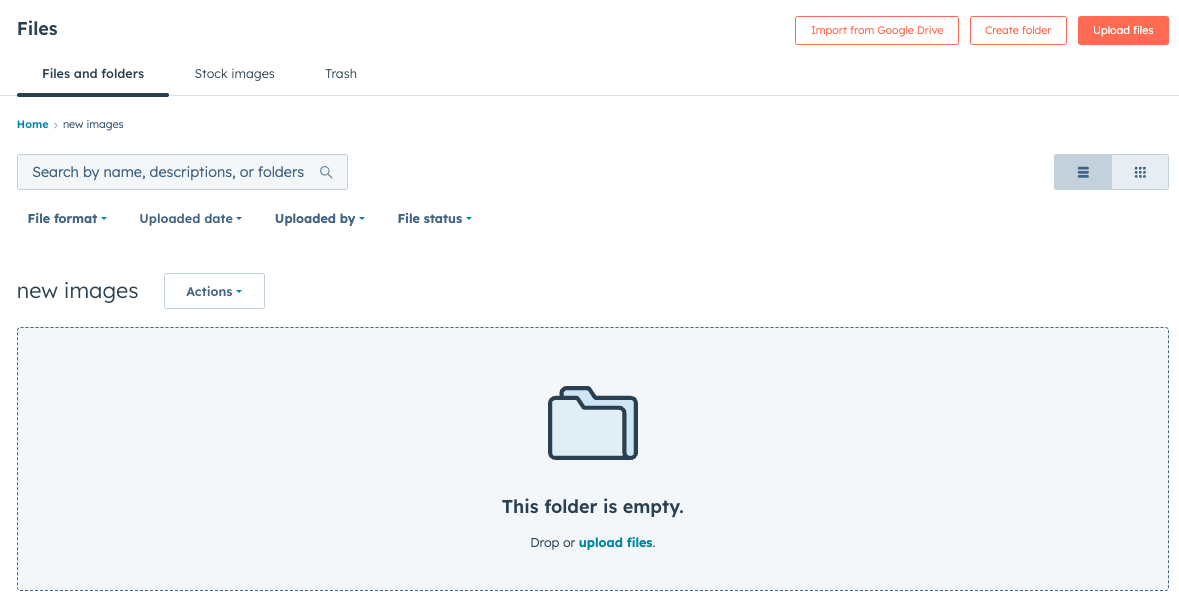
Images are stored inside the HubSpot Content Hub File Manager.
To upload images:
- Go to Content → File Manager
- Click Upload Files
- Select images from your computer
- Organize them into folders if needed
Once uploaded, images can be reused across pages, blog posts, landing pages, and emails.
Automatic Image Optimization
One advantage of using HubSpot Content Hub is that the platform automatically optimizes images when they are delivered to visitors.
HubSpot handles several optimization tasks such as:
- Compressing images for faster loading
- Delivering images through a content delivery network (CDN)
- Adjusting image sizes based on device type
These optimizations help ensure pages load efficiently across different devices.
Adjusting Image Size and Display
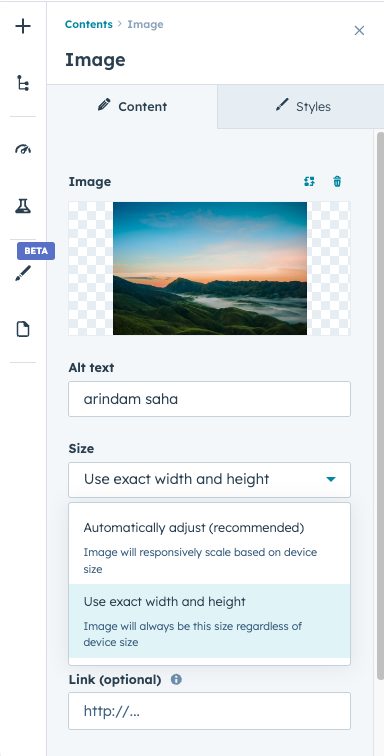
When adding images to pages in HubSpot Content Hub, you can control how they appear within the layout.
Common image settings include:
- Image alignment
- Image width or responsive scaling
- Alt text for accessibility and SEO
- Linking images to other pages
These settings allow editors to control both design and accessibility.
Adding Alt Text for SEO
Alt text is an important setting when using images.
Alt text provides a description of the image and helps:
- Search engines understand the image content
- Screen readers assist visually impaired users
- Improve overall website accessibility
When uploading images in HubSpot Content Hub, adding clear alt text is considered a best practice.
Replacing Images
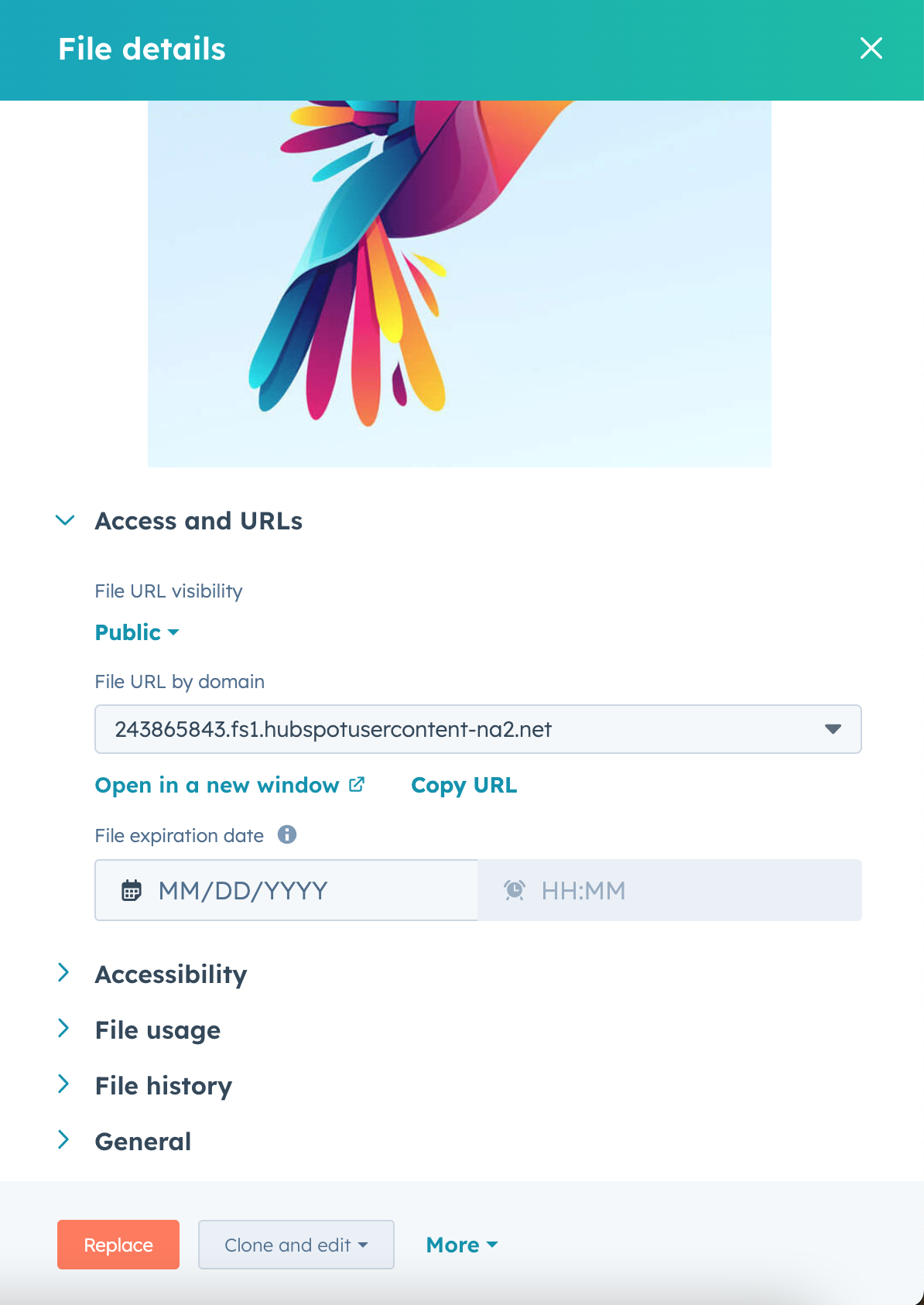
HubSpot also allows users to replace an image while keeping the same file URL.
This feature is useful when updating images that are used across multiple pages. By replacing the file, all locations using that image will automatically display the updated version.

Using Images Responsively
Modern websites must look good on different screen sizes.
Images inside HubSpot Content Hub are typically responsive, meaning they automatically adjust for desktop, tablet, and mobile screens.
This helps maintain a consistent user experience across devices.
Key Takeaway
HubSpot Content Hub provides built-in image optimization tools that help websites load quickly while maintaining high visual quality. By using the File Manager, responsive image settings, and proper alt text, teams can ensure their website images are both attractive and performance-friendly.
Related Post
How Do HubSpot Content Hub Forms Work?
Forms are one of the most important tools inside HubSpot Content Hub, especially for businesses focused on lead generation and marketing campaigns. Forms allow websites to collect information from visitors and automatically store it in the HubSpot...
How Does HubSpot Content Hub Schedule Blog Posts?
Publishing blog content consistently is important for maintaining an active website and engaging your audience. HubSpot Content Hub makes this easier by allowing users to schedule blog posts in advance.
How Do HubSpot Content Hub System Pages Work?
Every website needs certain system pages that handle situations such as errors, login access, or confirmation messages. HubSpot Content Hub provides system pages that control how these scenarios appear to visitors.
Have a Project in Mind?
Let’s talk about what you need and how we can make it happen.

Leave a reply