


.png)
.png)



As websites grow, the number of images, documents, and media files stored in HubSpot Content Hub can increase quickly. Without proper organization, managing these assets becomes difficult. To solve this, HubSpot provides a folder system inside the File Manager that helps teams organize files in a structured way.
Folders allow you to group related assets together, making it easier to locate files when building pages, publishing blog posts, or managing campaigns.
Understanding how HubSpot Content Hub folders and file organization work helps teams maintain a clean and efficient media library.
Why File Organization Is Important
Over time, websites accumulate hundreds or even thousands of files. These may include blog images, downloadable PDFs, campaign graphics, and brand assets.
Organizing files properly helps teams:
- Locate assets quickly
- Maintain a clean media library
- Avoid duplicate uploads
- Manage marketing campaigns more efficiently
A structured folder system is especially useful for teams that regularly publish new content.
Creating Folders in HubSpot Content Hub
Folders in HubSpot Content Hub File Manager allow you to group files into categories.
To create a new folder:
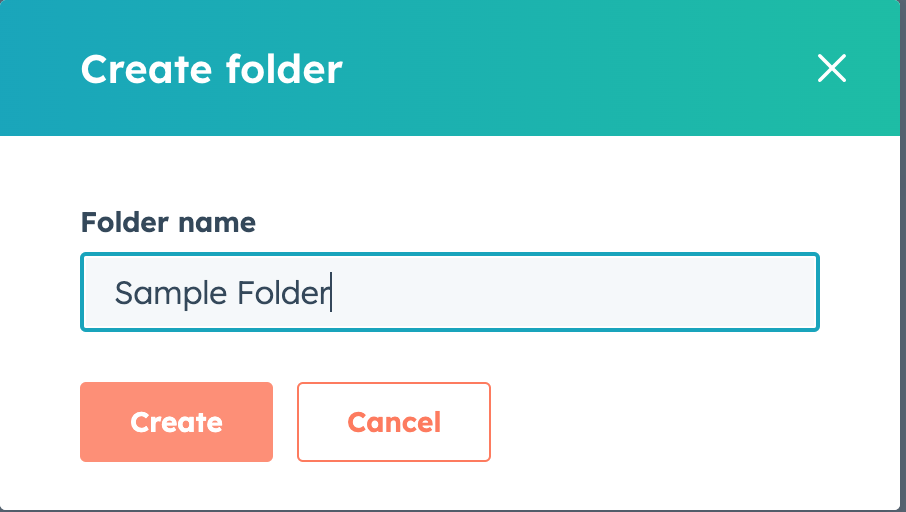
- Open Content → File Manager
- Click Create Folder
- Enter a folder name
- Save the folder
You can then upload files directly into that folder or move existing files into it.
Moving Files Between Folders
Files in the HubSpot Content Hub File Manager can easily be moved between folders.
To move a file:
- Select the file
- Choose the Move option
- Select the destination folder
This allows teams to reorganize files later if needed.

Searching for Files
Even with folders, large websites may still contain many files. HubSpot makes it easier to find assets by providing a search feature in the File Manager.
You can search files by:
- File name
- File type
- Folder location
This makes it easy to locate files when inserting them into pages.

Avoiding Duplicate Files
One common issue with media libraries is duplicate files.
Using a structured folder system helps reduce duplicates by making it easier to locate existing assets before uploading new ones.
Teams can also rename files clearly so that their purpose is easy to understand.
Key Takeaway
HubSpot Content Hub folders help organize files in a structured way, making it easier to manage large media libraries. By using folders and consistent naming conventions, teams can keep their File Manager organized and ensure assets are easy to find when building pages or publishing content.
Related Post

How Does HubSpot Content Hub Design Manager Work?
The Design Manager is the primary development environment within HubSpot Content Hub. It is where developers create and manage the files that control how a website looks and functions.

How Does HubSpot Content Hub File Manager Work?
The File Manager in HubSpot Content Hub is the central place where all media and files used on your website are stored. This includes images, PDFs, videos, documents, and other assets that appear across pages, blogs, landing pages, and emails.

How Do You Duplicate a Page in HubSpot Content Hub?
Duplicating a page in HubSpot Content Hub is a useful feature that allows you to quickly create a copy of an existing page. Instead of building a new page from scratch, duplication lets you reuse the same layout, modules, and content structure.
Power Up Your Project
Request a Quote and Let Us Save the Day!

Leave a reply