


.png)
.png)

WordPress to HubSpot Migration: Complete 2026 Guide
Introduction
If you're considering moving from WordPress to HubSpot Content Hub, you're not alone. We migrate dozens of WordPress sites to HubSpot every quarter — for businesses that have outgrown WordPress's maintenance burden, security risks, or fragmented marketing tools.
This guide walks through the complete process: how to plan it, how to execute it without losing SEO rankings, how to handle blog migration, and how to validate the launch. It's based on what we've learned across more than 15,000 migrations since 2011.
By the end, you'll have a clear understanding of what's involved, what to watch out for, and whether it's a project you want to handle yourself or hand off to a specialist.
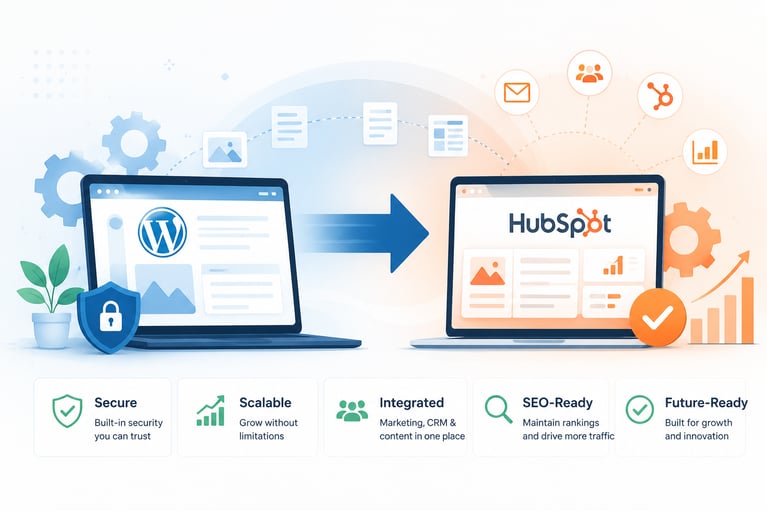
Why Move From WordPress to HubSpot?
Most teams don't migrate away from WordPress because WordPress is bad. They migrate because the way they actually run their business has changed.
The four most common reasons we hear:
1. Maintenance burden has become a liability
WordPress requires constant attention: core updates, plugin updates, theme updates, security patches, backups. Every plugin you've ever installed is a potential point of failure. As your business grows, the time spent managing WordPress grows with it — and that time isn't building your business.
2. Marketing tools are fragmented across multiple plugins
A typical WordPress marketing stack involves: a forms plugin, a popup plugin, an analytics plugin, an SEO plugin, an email plugin, a CRM plugin (or external CRM with sync), and probably an A/B testing tool. Each one is configured separately, breaks separately, and reports separately. Insights are scattered.
HubSpot consolidates all of this into one platform with one source of truth.
3. Security and compliance concerns
WordPress is the most-attacked CMS on the internet — not because it's insecure by design, but because its market share makes it the highest-value target. Every plugin is a potential vulnerability. For businesses in regulated industries or handling sensitive data, the security overhead is significant.
4. Marketing-sales alignment is broken
If your marketing team uses WordPress for content and your sales team uses a separate CRM, the data flow is rarely clean. Leads get lost. Attribution is fuzzy. By the time a lead becomes a deal, no one remembers what content brought them in.
HubSpot's integrated platform fixes this at the architectural level.
What You Should Know Before You Start
Some things will change
HubSpot is a different platform with different conventions. Your URL structure may need minor changes. Some WordPress plugins have no direct HubSpot equivalent and will need to be replaced with different approaches. Custom WordPress themes won't transfer — you'll need to rebuild your design as a HubSpot theme.
SEO preservation requires planning
Done well, a migration preserves your search rankings. Done poorly, it can drop them by 50% or more. The difference is in the redirect mapping, metadata transfer, and technical SEO discipline applied during migration.
The Complete Migration Process
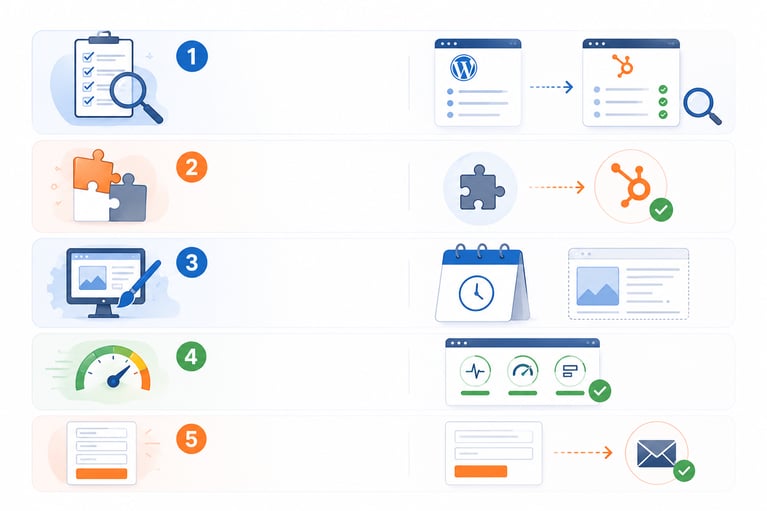
Here's the framework we use on every WordPress to HubSpot migration. Follow this order — each phase depends on the previous one being complete.
Phase 1: Pre-Migration Audit
Before you move anything, you need to understand what you have
Crawl your existing site
Use a tool like Screaming Frog, Sitebulb, or Ahrefs to crawl your entire WordPress site. Export every URL with its title, meta description, internal links, and basic SEO metadata. This becomes your migration master list.
Document your plugins
List every active plugin and what it does. For each one, identify whether HubSpot has built-in functionality that replaces it or whether you'll need a different approach. Common WordPress plugins and their HubSpot equivalents:
| WordPress Plugin | HubSpot Equivalent |
|---|---|
| Yoast SEO / Rank Math | Built-in SEO recommendations + custom metadata fields |
| Yoast SEO / Rank Math | Built-in SEO recommendations + custom metadata fields |
| Contact Form 7 / Gravity Forms | Native HubSpot Forms with CRM integration |
| WPForms with Mailchimp | Native HubSpot email + workflows |
| WP Rocket / W3 Total Cache | Built-in (HubSpot CDN handles this) |
| Wordfence / Sucuri | Built-in (HubSpot's security infrastructure) |
| Elementor / Divi / Beaver Builder | Custom HubSpot themes + drag-and-drop modules |
| WooCommerce | HubSpot Commerce or Shopify integration |
| MonsterInsights / GA plugins | Native HubSpot analytics + GA integration |
| UpdraftPlus / BackupBuddy | Built-in (HubSpot handles backups) |
Identify custom functionality
Any WordPress functionality that goes beyond standard pages — calculators, member areas, dynamic content, custom search, etc. — needs explicit planning. These are the items most likely to slow migration if not addressed early.
Capture your SEO baseline
Before any migration work begins, document:
- Current keyword rankings for top 50-100 pages (Search Console + a tool like Ahrefs)
- Top pages by organic traffic (last 12 months from Google Analytics)
- All inbound backlinks to specific URLs (so you know what to redirect)
- Current Core Web Vitals scores (PageSpeed Insights)
- Sitemap structure and any custom URL patterns
Phase 2: HubSpot Setup
Provision your HubSpot Content Hub instance
Sign up for HubSpot Content Hub at the appropriate tier (Starter, Professional, or Enterprise depending on your needs). Configure your account settings, user permissions, and brand kit.
Plan your domain strategy
Decide whether you'll migrate to a subdomain first (e.g., new.yoursite.com) for staging, or build directly on the production domain. We recommend the subdomain approach for risk management — you can fully test before the cutover.
Configure tracking and analytics
Add HubSpot's tracking code to your existing WordPress site early. This builds historical visitor data in HubSpot before launch, giving you continuity in your analytics.
Phase 3: Theme & Design Build
Decide: marketplace theme or custom?
HubSpot's marketplace has solid themes for under $200, suitable for many businesses. Custom themes give you full design control but require development time and budget. Most mid-sized migrations end up with a customized marketplace theme — speed of marketplace, customization for brand fit.
Build your theme structure
Translate your WordPress site's design into HubSpot's theme structure:
- Global header and footer (matching your existing brand)
- Page templates (home, about, services, contact, blog list, blog post, landing page)
- Custom modules for reusable components (testimonials, pricing tables, team grids, etc.)
- Brand settings (colors, fonts, spacing) configured in theme settings
Build modules in order of priority
Start with the modules that appear on your highest-traffic pages. This way, as you migrate content in Phase 4, the most important pages can be rebuilt first.
Phase 4: Content Migration
Import blog content via HubSpot's blog importer
HubSpot's blog import tool handles WordPress XML exports cleanly. It imports posts with their titles, content, authors, dates, tags, and categories. After import, do a sample check to verify everything came through correctly.
Manually rebuild static pages
Static pages (home, about, services, etc.) need to be rebuilt in HubSpot using your new theme and modules. This is more time-consuming than blog migration but gives you the chance to improve content quality, structure, and CTAs in the process.
Migrate images and media
Use HubSpot's File Manager bulk upload for images. Update internal references to point to the new HubSpot-hosted URLs. Critical: don't reference images on your old WordPress install — those references will break after migration.
Recreate forms
Build all forms natively in HubSpot. Map form fields to CRM properties so submissions flow directly into your sales pipeline. Test every form with a real submission before launch.
Phase 5: SEO Preservation
This is where most migrations succeed or fail.
Map every URL
For every URL on your old WordPress site, decide its fate:
- Direct match — the same URL exists on HubSpot. No redirect needed.
- Changed URL — the page exists with a different URL. Set up a 301 redirect.
- Discontinued page — the page won't exist anymore. Decide where to redirect it (related page or hub page).
Implement 301 redirects
HubSpot has a native URL Redirects feature in your account settings. Add every redirect before launch. After launch, test a sample of redirects to verify they're working.
Recreate metadata
For every migrated page, recreate:
- Page title (the title tag visible in search results)
- Meta description
- Open Graph tags (for social sharing) '
- Schema markup (Organization, BreadcrumbList, Article, FAQPage as relevant)
- Canonical URLs (especially important if you have similar content)
Generate and submit a new sitemap
HubSpot generates sitemap.xml automatically. Submit it to Google Search Console and Bing Webmaster Tools immediately after launch.
Phase 6: QA and Pre-Launch Testing
Visual QA across devices
Review every page on desktop, tablet, and mobile. Check for: broken layouts, missing images, font issues, broken links, alignment problems.
Cross-browser testing
Test on Chrome, Safari, Firefox, and Edge. Pay particular attention to forms, custom modules, and any JavaScript-heavy elements.
Performance benchmarking
Run Lighthouse audits on your top 10 pages. Compare against your WordPress baseline. Address any regressions before launch.
Forms and CTAs
Submit every form. Click every CTA. Verify the data flows correctly into HubSpot CRM and that any automation triggers fire as expected.
Internal links
Crawl the new site to find any broken internal links. Fix them before launch.
Phase 7: Launch and DNS Cutover
Choose your launch window carefully
Launch on a low-traffic day. Avoid Fridays and pre-holiday days — bugs surface in the first 48 hours and you want your team available to handle them.
Update DNS
Point your domain's A records and CNAMEs to HubSpot per their DNS guide. Most DNS changes propagate within minutes; some take up to 48 hours.
Monitor immediately after launch
In the first hour: verify pages are loading on the production domain, forms are submitting, analytics is tracking. In the first 24 hours: monitor uptime, error logs, and any user feedback.
Phase 8: Post-Launch Monitoring
First 14 days
Monitor closely:
- Google Search Console for crawl errors, coverage issues, or indexation drops
- Analytics for traffic anomalies
- Form submissions to ensure CRM flow is intact
- Page speed to catch any performance regressions
First 30-90 days
Search rankings often dip slightly after a migration before recovering. This is normal. Watch the trend, not individual day-to-day fluctuations. If rankings haven't recovered after 60-90 days, do a thorough technical SEO audit to identify any missed redirects or metadata issues.
Common WordPress to HubSpot Migration Mistakes
Mistake 1: Skipping the URL audit
Teams who don't audit every URL pre-migration always find broken links and missing redirects post-launch. Allow a full day for this audit on a typical site.
Mistake 2: Trying to recreate every WordPress plugin
Some WordPress plugins have no direct equivalent in HubSpot. That's not a problem — usually HubSpot has a different (often better) way to achieve the same outcome. Don't try to force a 1:1 plugin replacement.
Mistake 3: Underestimating theme rebuild time
WordPress themes don't translate to HubSpot themes. You're rebuilding the design in a different system. Budget proper time for this — a custom theme can take 2-4 weeks for an experienced HubSpot developer.
Mistake 4: Ignoring Core Web Vitals
HubSpot's infrastructure is fast, but how you build your theme determines your final performance. Don't assume HubSpot will be faster automatically — verify with Lighthouse
Mistake 5: Launching without thorough form testing
Forms break silently. A form that 'looks fine' but doesn't actually submit to your CRM is invisible until leads start complaining. Test every form with a real submission, not just the visual builder.
How Long Will My Migration Take?
Based on our 15,000+ migrations, here are typical timelines for WordPress to HubSpot migrations:
| Site Size | Typical Timeline | Complexity Drivers |
|---|---|---|
| Small (under 25 pages, basic blog) | 2-3 weeks | Standard pages, marketplace theme |
| Medium (25-100 pages, active blog) | 4-6 weeks | Custom modules, multiple page templates |
| Large (100-500 pages, complex site) | 6-10 weeks | Custom theme, multiple integrations |
| Enterprise (500+ pages, custom features) | 10-16 weeks | Custom development, complex CRM mapping |
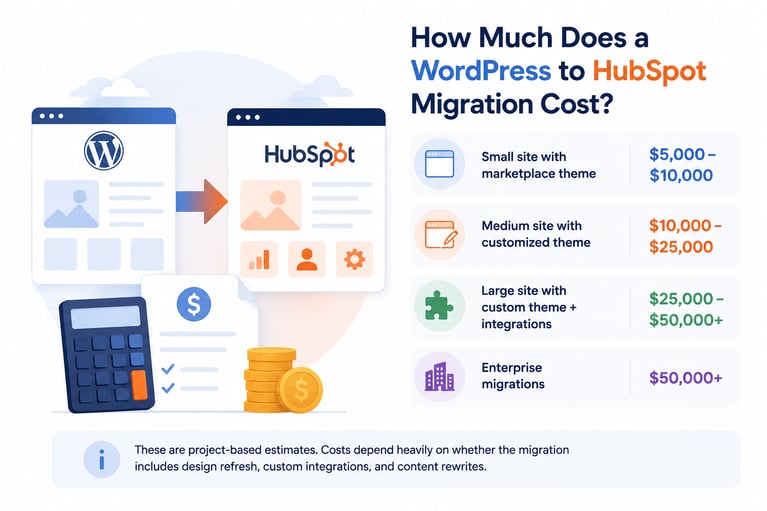
How Much Does a WordPress to HubSpot Migration Cost?
Migration costs vary widely based on site complexity, design ambition, and integration requirements. Rough ranges based on our experience:
- Small site with marketplace theme: $5,000-$10,000
- Medium site with customized theme: $10,000-$25,000
- Large site with custom theme + integrations: $25,000-$50,000+
- Enterprise migrations: $50,000+
These are project-based estimates. Costs depend heavily on whether the migration includes design refresh, custom integrations, and content rewrites.
Should You Migrate Yourself or Hire an Agency?
Honestly, it depends on three things:
How critical is SEO preservation?
If organic search drives meaningful business for you, an experienced agency dramatically reduces the risk of SEO regression. The cost of a botched migration usually exceeds the cost of professional help.
How much time can your team afford?
Even with an agency, your team will spend significant time on the migration. If your team can't afford 4-8 weeks of focused attention, an agency-led project becomes much more practical.
Get the Complete Checklist (Free Download)
This guide walks through the framework. The downloadable PDF gives you a printable, step-by-step checklist you can work through phase by phase — the same one our team uses on every migration.
Download the complete WordPress to HubSpot Migration Checklist (PDF) →
Frequently Asked Questions
How long does a WordPress to HubSpot migration take?
Most migrations complete in 4-8 weeks. Smaller sites can finish in 2-3 weeks; larger or more complex sites may take 10-16 weeks. Timeline depends on site size, design complexity, and integration requirements.
Will I lose SEO rankings during a WordPress to HubSpot migration?
Done properly with thorough redirect mapping and metadata transfer, no — you preserve rankings. Done poorly, you can lose 50% or more. The difference is entirely in the SEO discipline applied during the migration process.
Can I migrate my WordPress blog to HubSpot?
Yes. HubSpot's blog import tool handles WordPress XML exports cleanly, transferring posts, authors, dates, categories, and tags. Some manual cleanup is typical for complex blog setups.
Do I need to rebuild my WordPress theme in HubSpot?
Yes. WordPress themes don't transfer to HubSpot. You'll either customize a HubSpot marketplace theme or build a custom theme that matches your existing design.
What WordPress plugins have no HubSpot equivalent?
Most marketing-related plugins (forms, SEO, analytics, email, CRM) have HubSpot equivalents that are usually better integrated. Some niche plugins (highly specialized e-commerce extensions, learning management systems) may require third-party integrations or alternative approaches.
Can I keep my WordPress URLs after migration?
Often yes. HubSpot supports flexible URL structures. Where the URL has to change, set up 301 redirects to preserve SEO equity.
Will HubSpot Content Hub be faster than WordPress?
Out of the box, generally yes — HubSpot's CDN, image optimization, and infrastructure are optimized by default. WordPress can match or beat HubSpot's performance with significant tuning, but most WordPress sites are slower in practice.
How much does it cost to migrate from WordPress to HubSpot?
Migration projects typically range from $5,000 for small sites to $50,000+ for complex enterprise sites. The cost varies based on site size, design complexity, custom integrations, and whether the project includes content refresh.
Can I migrate WooCommerce to HubSpot?
HubSpot Commerce can replace WooCommerce for service-based or simple product businesses. For complex e-commerce, integrating Shopify with HubSpot Content Hub is often a better architecture than trying to recreate WooCommerce in HubSpot.
Do I need a HubSpot agency to do the migration?
Not strictly. HubSpot publishes thorough migration documentation, and small migrations are achievable in-house with technical resources. For larger or more SEO-critical migrations, an experienced HubSpot Solutions Partner significantly reduces risk and timeline.
Need Help With Your WordPress to HubSpot Migration?
We've migrated over 15,000 websites to HubSpot Content Hub since 2011, and WordPress is our most-migrated source platform. Whether you need a complete agency-led migration or just a second pair of eyes on your in-house plan, we can help.
Power Up Your Project
Request a Quote and Let Us Save the Day!
